Thank you for expressing interest in contributing to The Odin Project (TOP) curriculum! Before continuing through this guide, be sure you've read our general contributing guide, as it contains information that is important for all of our repos.
This contributing guide assumes you have followed the instructions in our general contributing guide to fork and clone our curriculum repo.
Please refer to our general contributing guide for details on the difference between simple and significant changes, and the expected process for handling each.
When it comes to opening a pull request (PR) to our curriculum, there are 2 main ways you can do so:
- Click the "Improve on GitHub" link found at the end of each lesson. This will open the lesson file in its "edit" mode, allowing you to make any edits and submit a PR all through GitHub. This can be useful if you're new to contributions and want to make a simple change.
- Follow the instructions from the general contributing guide to fork and clone this repo locally, and work from there. This is necessary if you need to edit multiple files as part of a single PR.
Regardless of the way you choose to open a PR, while working on an existing or a new lesson you must follow our Layout Style Guide to ensure the layout and formatting is consistent across our curriculum.
Before submitting a PR for any lesson, you must also use our Lesson Preview Tool to ensure the lesson Markdown is correctly formatted and rendering properly.
Note
For information about contributing to our custom linting rules, please read the custom markdown linting contributing guide.
To help enforce the layout specified in our layout style guide, we use markdownlint. Whenever a PR is opened or has updates made to it, a workflow will run to check any files changed in the PR against common rules as well as custom rules specific to TOP. To make the workflow easier, we also strongly suggest that users who have a local clone run this linter locally before committing any changes. There are 2 ways you can do so:
- Install the Markdownlint VSCode Plugin. This plugin will automatically pick up our markdownlint configuration and flag issues with a squiggly underline.
- Install the
markdownlint-cli2dependency. This will require you to have installed Node, which we cover in our Foundations path. Simply runnpm installwithin the directory of your curriculum clone and you can run one of our npm scripts to easily lint or fix files. Note that running these scripts without a supplied file path will result in help documentation being output to the terminal.- Lint a file:
npm run lint -- "./path/to/file" - Autofix a file:
npm run fix -- "./path/to/file"
- Lint a file:
Important
npm scripts always run from the root of the curriculum repo (the same location as this file and package.json). Therefore, you must provide the full lesson/project file path relative to the repo root, even if your terminal is inside a subdirectory (such as the same directory as the lesson file).
Tip
In some cases, you may need to run a fix script more than once to catch and fix all fixable errors. This typically occurs when a line has multiple errors affecting the same parts and fix actions collide, so Markdownlint only applies some of the fixes.
Note
With either of these two methods, keep in mind that not all issues that get flagged will have an autofix available. Some rules require fixes that are more dependent on context and cannot - and should not - be automatically fixed, such as our custom rule TOP001 for descriptive link text.
The following markdownlint rules are at least partially fixable via the fix script:
- MD004 ul-style
- MD005 list-indent
- MD007 ul-indent
- MD009 no-trailing-spaces
- MD010 no-hard-tabs
- MD011 no-reversed-links
- MD012 no-multiple-blanks
- MD014 commands-show-output
- MD018 no-missing-space-atx
- MD019 no-multiple-space-atx
- MD022 blanks-around-headings
- MD023 headings-start-left
- MD026 no-trailing-punctuation
- MD027 no-multiple-space-blockquote
- MD028 no-blanks-blockquote
- MD030 list-marker-space
- MD031 blanks-around-fences
- MD032 blanks-around-lists
- MD037 no-space-in-emphasis
- MD038 no-space-in-code
- MD039 no-space-in-links
- MD044 proper-names
- MD047 single-trailing-newline
- MD049 emphasis-style
- MD050 strong-style
- MD053 link-image-reference-definitions
- TOP002 no-code-in-headings
- TOP003 default-section-content
- TOP005 blanks-around-multiline-html-tags
- TOP006 full-fenced-code-language
- TOP007 use-markdown-links
- TOP008 use-backticks-for-fenced-code-blocks
- TOP010 use-lazy-numbering
- TOP011 heading-indentation
- TOP012 heading-levels
Adding images to the curriculum is a two-step process, involving two PRs. For a general overview, you need to:
- Upload the image(s) to the repository.
- Create
statically.iolinks to the images and add those links to the appropriate lesson(s).
- Have a copy of the image you want to upload on your local machine.
- If it doesn’t already exist, create a directory with the same name in the same directory as the lesson you want to add an image to.
- If it doesn’t already exist, create an
imgsdirectory inside of the directory you made in the previous step. - Add your image to the directory you made in step 3, naming it the order it appears on the page starting from 00 (i.e. the second image in a lesson will be
01.png(or whatever extension)). If replacing an image, just replace the appropriate image file. - PR the addition of the image(s). Here is an example PR where this process was followed.
Only do this bit once the PR to add the image file(s) to the repository has been merged.
-
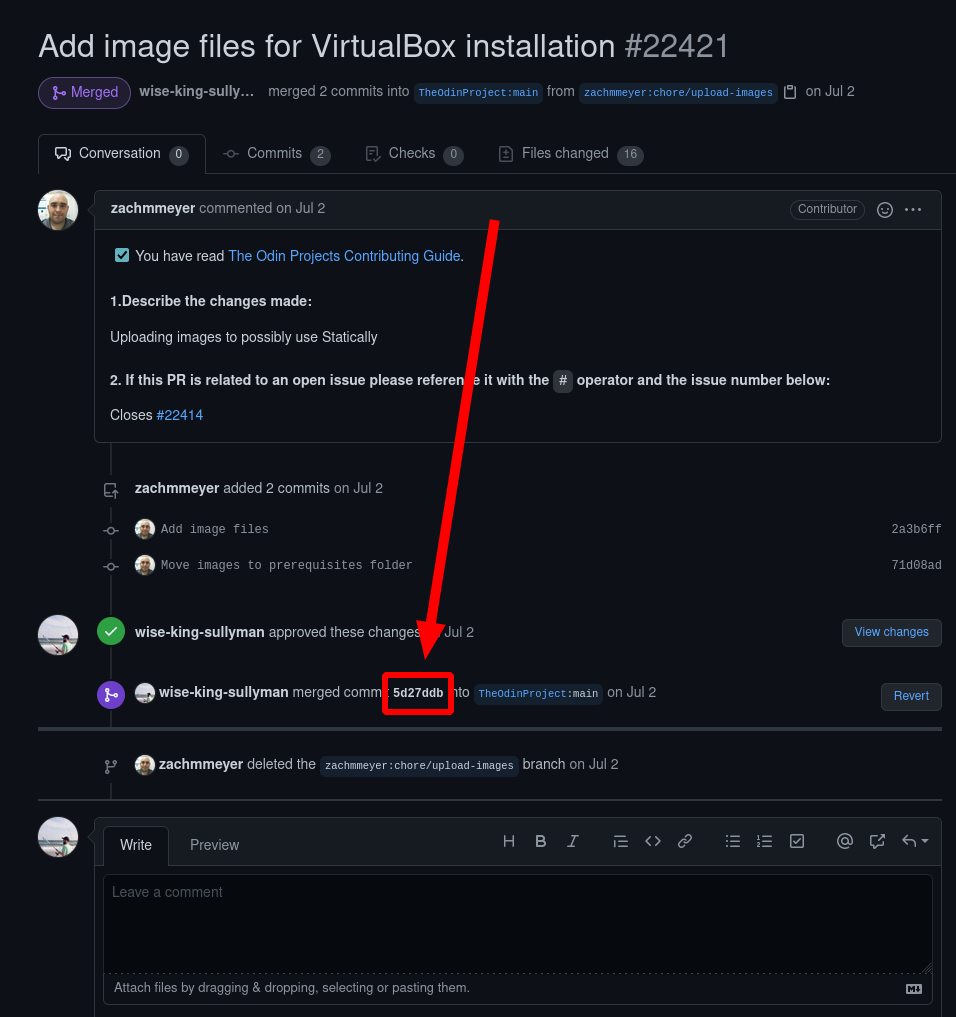
Go to the PR that added the image(s) to the repo.
-
Right-click the commit ID where it was merged and select
copy link. -
Go to https://wise-king-sullyman.github.io/better-statically-converter-react/
-
Paste the URL you copied into the text box on the main screen of that site, then hit Enter.
-
The site will generate the statically CDN link to each image that was merged into the curriculum with that PR. You can click each link to auto-copy that link to your clipboard.
-
Use each of these links to link to your desired images in the curriculum content you’re editing/adding.
-
PR the addition of the image links (and any other content you’ve added/changed in the lesson).
If you want to update the Ruby language version installed in the Ruby Installation lesson, there are a few additional changes that may need to happen:
-
Update the version number in the
.ruby-versionfile in the following repos: -
Ruby uses semver for its versioning, where the first digit is a 'major' version, the second digit is a 'minor' version, and the third digit is a 'patch' version. If you're updating the installation to a Ruby version that bumps the major or minor digits, then the documentation links throughout the Ruby course will need to be updated. They use a URL like
https://docs.ruby-lang.org/en/x.ywherexandydigits denote the major and minor versions respectively. You'll need to find all the existing documentation links and replace them to reference the new version. You can do this through using your editor's global find and replace utility or through the command line. An example command that would update the docs from 3.3 to 3.4 if run from the curriculum root:find . -type f -exec sed -i 's+docs.ruby-lang.org/en/3.3+docs.ruby-lang.org/en/3.4+g' {} +
-
Although not strictly required, we do like to have the version of Ruby used on the main site match the version that's used in the curriculum. If they don't match and you're comfortable working in a Rails app, feel free to put in a PR to the main site repo that bumps the Ruby version to what you're changing it to. If you're not experienced with Rails, you can open an issue instead and another contributor will pick it up.