This is a short tutorial showing how to configure projects and solution files needed to successfully compile Binaryen with Visual C++ Build Tools or Visual Studio 2015.
For compiling WebAssembly files to asm.js and running them in a browser visit this short intro.
-
[Option 1] Visual C++ Build Tools (using the Default Install option)
-
[Option 2] Visual Studio 2015 (Community Edition should be fine)
-
CMake (version used here is v.3.4.1)
First, make sure you have git, cmake and msbuild (v14.0, check with msbuild /version) in PATH.
Then clone the latest sources of Binaryen to your local system using Command Prompt or PowerShell:
git clone https://github.com/WebAssembly/binaryen.git --recursiveBuild binaryen:
cd binaryen

cmake .

cmake --build . --config Release
That's it! The compiled executables will be produced in bin directory.
Note: after running cmake ., you will also find the binaryen.sln, which you can:
- Open with Visual Studio.
- or build with
msbuild binaryen.sln /p:Configuration=Release
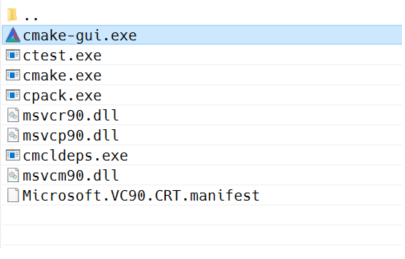
Open CMake-GUI from its installation folder.
Insert the source folder of Binaryen you downloaded previously. [Where is the source code]
Also insert the root folder where generated binaries should be located. [Where to build the binaries]
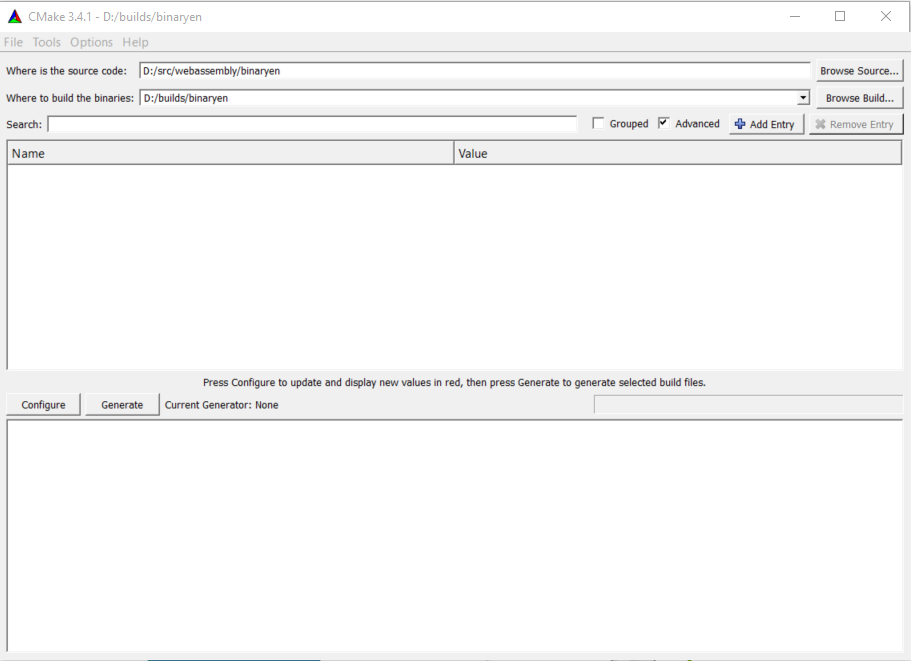
Click Configure...
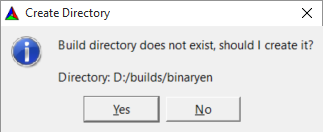
If the folder doesn't exist CMake will ask you for permission to create one.
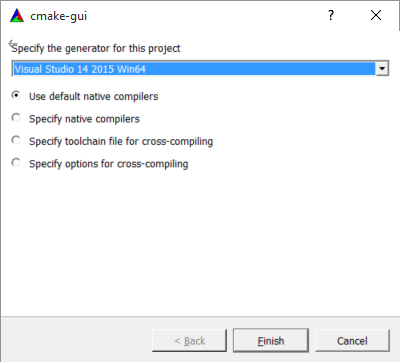
then choose your compiler toolchain. In this case it should be Visual Studio 14 2015 Win64.
Also use the default native compiler.
After a few moments CMake will generate default compiler settings.
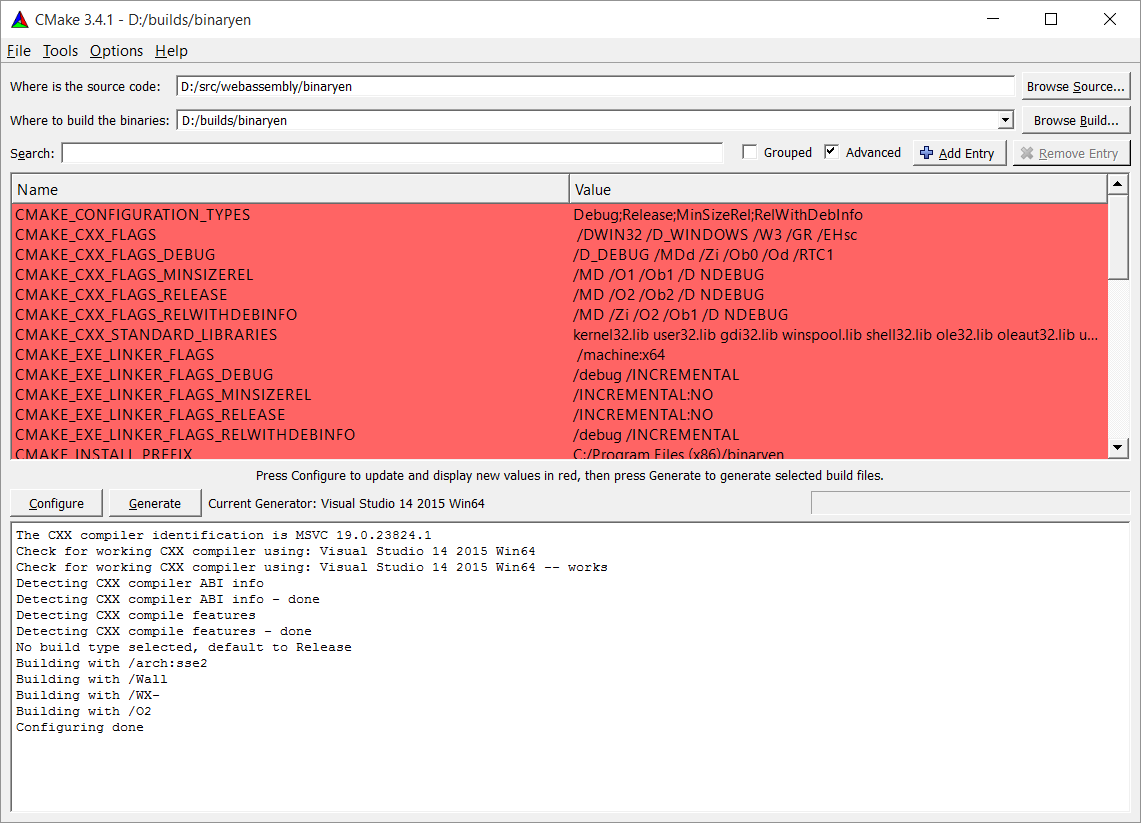
Now click Generate to create Project and Solution files for VS2015.
Go to the build folder you set previously and double click the binaryen.sln to open it with VS2015.
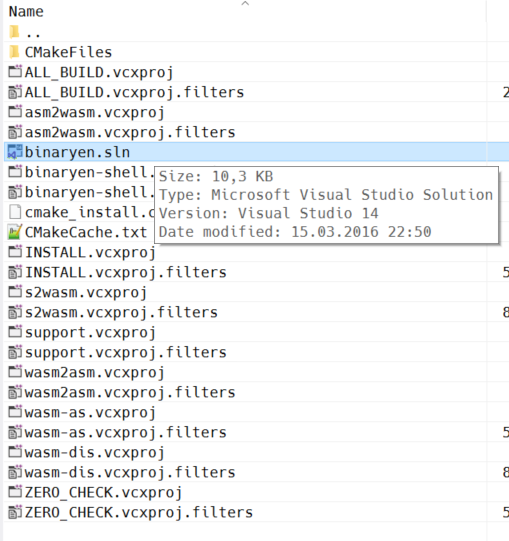
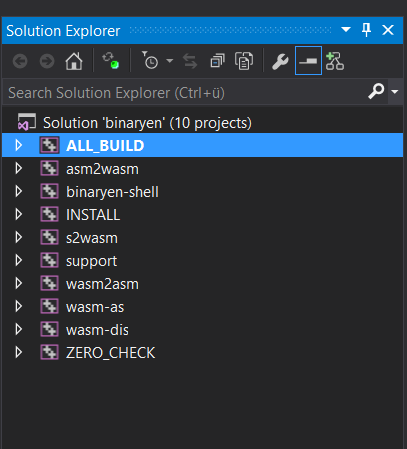
By default the ALL_BUILD Project is set as Startup Project. Just press F6 to build everything.
In the end you should see a result like this:
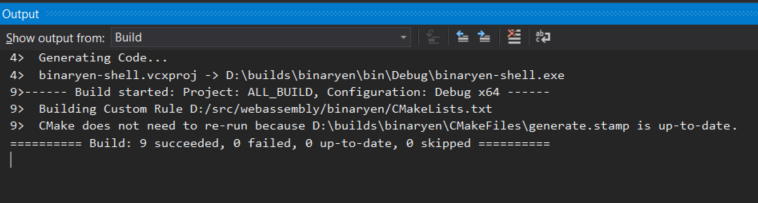
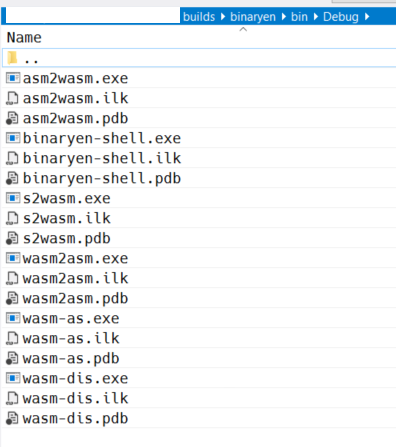
Depending on your currently active Build-Config the binaries will either be located under bin\Debug or bin\Release
Have fun with WebAssembly! 😄