A Godot 4.5+ Android plugin for Google Play In-App Updates using the Play Core library.
Supports both Flexible and Immediate update flows.
Author: Mayank Meena | License: MIT
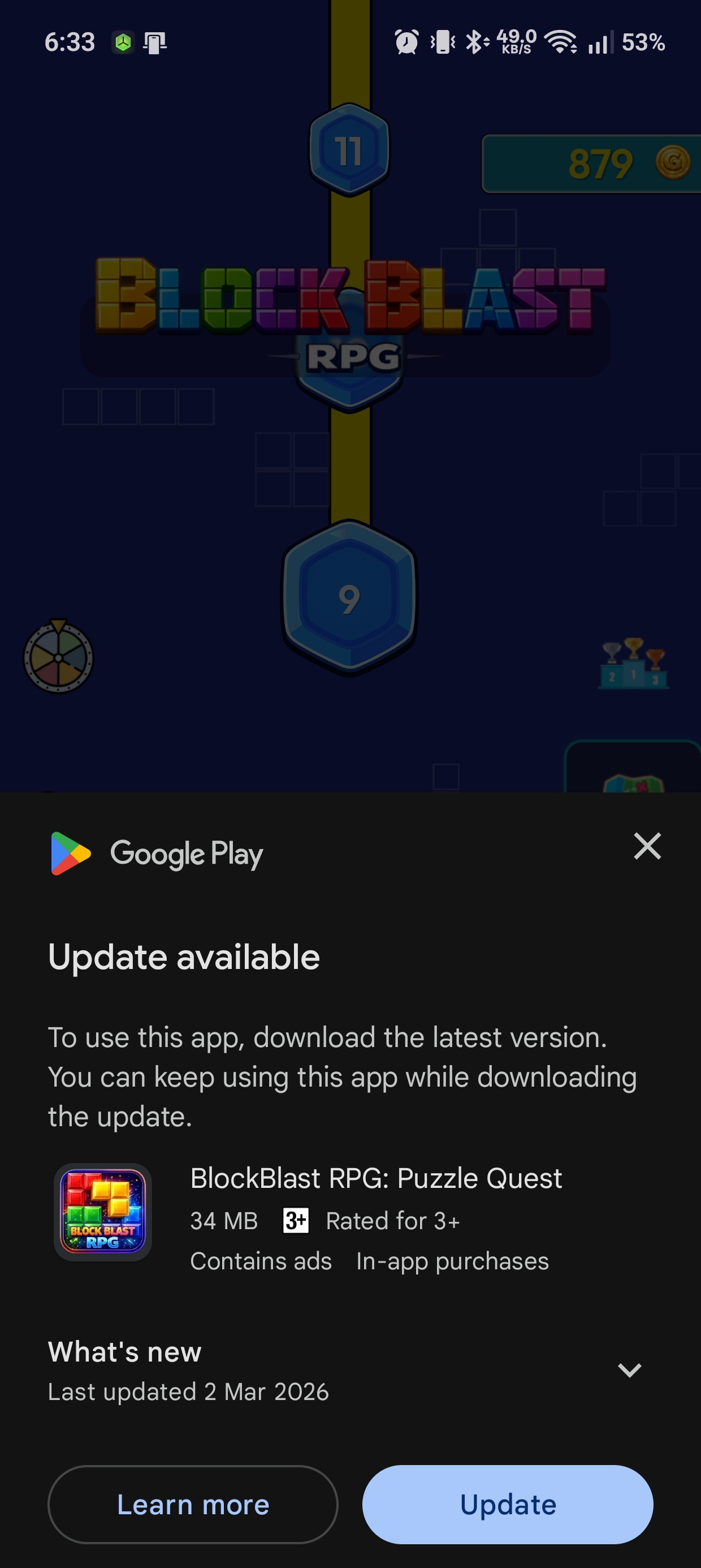
Screenshot from Block Blast RPG – Puzzle Quest on Google Play, which uses this plugin.
- ✅ Check if an update is available on Google Play
- ✅ Start Flexible updates (background download, user continues using app)
- ✅ Start Immediate updates (full-screen Google Play UI, auto-restart)
- ✅ Monitor download progress with signals
- ✅ Complete flexible updates (trigger app restart after download)
- ✅ Automatically resumes stalled immediate updates on app resume
- ✅ Exposes update staleness days and update priority
- ✅ Clean GDScript wrapper with typed signals
Once integrated, the plugin will automatically handle in-app updates based on how you publish your app:
| Upload Method | Update Priority | Behavior |
|---|---|---|
| Google Play Console (Web) | Always 0 |
Shows an optional (flexible) update dialog. Users can skip or update later. |
| Google Play Developer API / Fastlane | 0 – 5 (configurable) |
You control the priority. Use priority >= 4 to trigger a forced (immediate) update. |
Staleness-based force update: Even when uploading via the web (priority = 0), you can use staleness_days to force an update after a threshold. For example, if the update has been available for more than 7 days, trigger an immediate update — ensuring all users eventually get critical fixes.
# Example: Optional update by default, forced after 7 days
if priority >= 4 or staleness_days > 7:
    InAppUpdate.start_immediate_update()   # Force update
elif is_flexible:
InAppUpdate.start_flexible_update() # Optional update- Go to the Releases page.
- Download the latest release
.zipfile. - Extract the
addons/GodotAndroidInAppUpdate/folder into your Godot project.
If you've cloned this repository, you can copy the pre-built plugin directly:
# Build first
./gradlew assemble

# Then copy the addons folder
cp -r plugin/demo/addons/GodotAndroidInAppUpdate/ /path/to/your_project/addons/# Clone the repository
git clone https://github.com/dcryptoniun/Godot-Android-InAppUpdate.git
cd Godot-Android-InAppUpdate
# Build
./gradlew assembleThis compiles the AAR and copies it along with the export scripts to plugin/demo/addons/GodotAndroidInAppUpdate/.
After installation, your project should look like:
your_project/
├── addons/
│   └── GodotAndroidInAppUpdate/
│       ├── plugin.cfg
│       ├── export_plugin.gd
│       ├── in_app_update.gd
│       └── bin/
│           ├── debug/
│           │   └── GodotAndroidInAppUpdate-debug.aar
│           └── release/
│               └── GodotAndroidInAppUpdate-release.aar
- Open your project in Godot Editor.
- Go to Project → Project Settings → Plugins.
- Enable GodotAndroidInAppUpdate.
In-App Updates require a custom Android build:
- Go to Project → Install Android Build Template.
- In Export → Android, enable Use Gradle Build.
Add in_app_update.gd as an AutoLoad singleton (e.g., named InAppUpdate):
- Go to Project → Project Settings → Autoload.
- Add
res://addons/GodotAndroidInAppUpdate/in_app_update.gdasInAppUpdate.
Then use it in your scripts:
extends Node

func _ready() -> void:
    InAppUpdate.update_info_received.connect(_on_update_info)
    InAppUpdate.update_status_changed.connect(_on_status_changed)
    InAppUpdate.update_check_failed.connect(_on_check_failed)
    InAppUpdate.update_flow_result.connect(_on_flow_result)

    # Check for updates when the game starts
    InAppUpdate.check_for_update()


func _on_update_info(
        is_available: bool,
        is_flexible: bool,
        is_immediate: bool,
        version_code: int,
        staleness_days: int,
        priority: int
) -> void:
    if not is_available:
        print("App is up to date!")
        return

    print("Update available! Version: ", version_code)

    # Choose update type based on priority
    if priority >= 4 or staleness_days > 7:
        # High priority or stale → force immediate update
        InAppUpdate.start_immediate_update()
    elif is_flexible:
        # Otherwise, use flexible update
        InAppUpdate.start_flexible_update()


func _on_status_changed(status: int, downloaded: int, total: int) -> void:
    match status:
        InAppUpdate.InstallStatus.DOWNLOADING:
            var percent: float = 0.0
            if total > 0:
                percent = float(downloaded) / float(total) * 100.0
            print("Downloading: %.1f%%" % percent)
        InAppUpdate.InstallStatus.DOWNLOADED:
            # Update downloaded! Prompt user or complete immediately
            print("Update downloaded! Installing...")
            InAppUpdate.complete_flexible_update()
        InAppUpdate.InstallStatus.FAILED:
            print("Update failed!")
        InAppUpdate.InstallStatus.CANCELED:
            print("Update canceled by user.")


func _on_check_failed(error: String) -> void:
    print("Update check failed: ", error)


func _on_flow_result(result_code: int) -> void:
    if result_code == InAppUpdate.RESULT_OK:
        print("User accepted update")
    else:
print("User declined update (code: %d)" % result_code)var plugin: Object
func _ready() -> void:
if Engine.has_singleton("GodotAndroidInAppUpdate"):
plugin = Engine.get_singleton("GodotAndroidInAppUpdate")
plugin.connect("update_info_received", _on_update_info)
plugin.connect("update_status_changed", _on_status_changed)
plugin.connect("update_check_failed", _on_check_failed)
plugin.connect("update_flow_result", _on_flow_result)
plugin.checkUpdateAvailable()| Method | Description |
|---|---|
checkUpdateAvailable() |
Checks if an update is available. Emits update_info_received or update_check_failed. |
startFlexibleUpdate() |
Starts a flexible (background) update flow. |
startImmediateUpdate() |
Starts an immediate (full-screen) update flow. |
completeFlexibleUpdate() |
Installs a downloaded flexible update and restarts the app. |
| Signal | Parameters | Description |
|---|---|---|
update_info_received |
is_available: bool, is_flexible_allowed: bool, is_immediate_allowed: bool, available_version_code: int, staleness_days: int, update_priority: int |
Emitted after checkUpdateAvailable() succeeds. |
update_check_failed |
error_message: String |
Emitted when the update check fails. |
update_status_changed |
status: int, bytes_downloaded: int, total_bytes_to_download: int |
Emitted during flexible update download/install. |
update_flow_result |
result_code: int |
Emitted when user accepts/cancels the update dialog. |
| Constant | Value | Description |
|---|---|---|
STATUS_UNKNOWN |
0 | Unknown status |
STATUS_PENDING |
1 | Update is pending |
STATUS_DOWNLOADING |
2 | Update is downloading |
STATUS_DOWNLOADED |
3 | Update downloaded, ready to install |
STATUS_INSTALLING |
4 | Update is being installed |
STATUS_INSTALLED |
5 | Update installed successfully |
STATUS_FAILED |
6 | Update failed |
STATUS_CANCELED |
7 | Update was canceled |
The Update Priority (0 to 5) cannot be set via the Google Play Console web interface. It must be set at the time of publication using the Google Play Developer API.
-
Using the Google Play Developer API (Recommended for CI/CD): If you use automated tools to upload your builds, you can set the
updatePriorityin theEdits.tracksresource. The field is an integer between0(default) and5(highest priority). -
Using Fastlane (Supply): If you use Fastlane, you can specify the priority in your
Appfileor directly in theupload_to_play_storecommand:upload_to_play_store( track: 'production', update_priority: 5 )
-
Manual Workaround (via API): If you don't have an automated pipeline, you would need to use a tool like Google API Explorer or a custom script to "patch" the release track after the build has been uploaded but before it is fully released.
If you upload your app via the browser, the Update Priority will always be 0.
However, Staleness Days will still work! staleness_days indicates how many days have passed since the update became available on the Play Store, regardless of how it was uploaded. You can use this value as a fallback to force updates after a certain period (e.g., if staleness_days > 30).
- Call
checkUpdateAvailable()→ receiveupdate_info_received - Call
startFlexibleUpdate()→ Google Play shows a small consent dialog - User accepts → download happens in background
- Listen for
update_status_changedwith statusDOWNLOADED(3) - Call
completeFlexibleUpdate()→ app restarts with the new version
- Call
checkUpdateAvailable()→ receiveupdate_info_received - Call
startImmediateUpdate()→ Google Play takes over the full screen - Google Play handles everything; app restarts automatically
- In-app updates only work on devices with Google Play and when your app is distributed via the Play Store.
- Testing locally (via USB debug) will report
NOT_AVAILABLEsince there's no Play Store update to compare against. - To test, upload your app to a Play Console test track (Internal Testing or Internal App Sharing), install the older version, then upload a newer
versionCode. - Immediate updates are automatically resumed if the app returns to foreground while an update is in progress.
The plugin/demo/ folder contains a ready-to-use Godot project that demonstrates all update flows with buttons and a log panel.
./gradlew assemble
# Then open plugin/demo/ in Godot, export to Android, and test.MIT License - See LICENSE for details.