R on Windows toolchain and package manager based on msys2.
Rtools40 does not conflict with other versions of Rtools and can be installed alongside existing Rtools 3.5 installations.
- Use rtools40-x86_64.exe on 64 bit Windows
- Use rtools40-i686.exe on 32 bit Windows
Rtools does not put itself on the PATH. You can add the following line to your ~/.Renviron file (where ~ is your Documents folder by default) to help R find rtools when installing packages.
PATH="${RTOOLS40_HOME}\usr\bin;${PATH}"
Many R packages require external system libraries to build. Rtools4 includes a package manager called pacman which you can use to build and install system libraries provided via rtools packages. The pacman package manager has been ported from Arch Linux. Extensive documentation on how to use it is available from the msys2 documentation and the Arch Pacman webite.
To start using Rtools, open an Rtools bash shell via the Start Menu. There are 3 links in the to start menu to start a terminal, they only differ in which toolchain is put on the PATH. For most purposes it does not matter which shortcut you use.
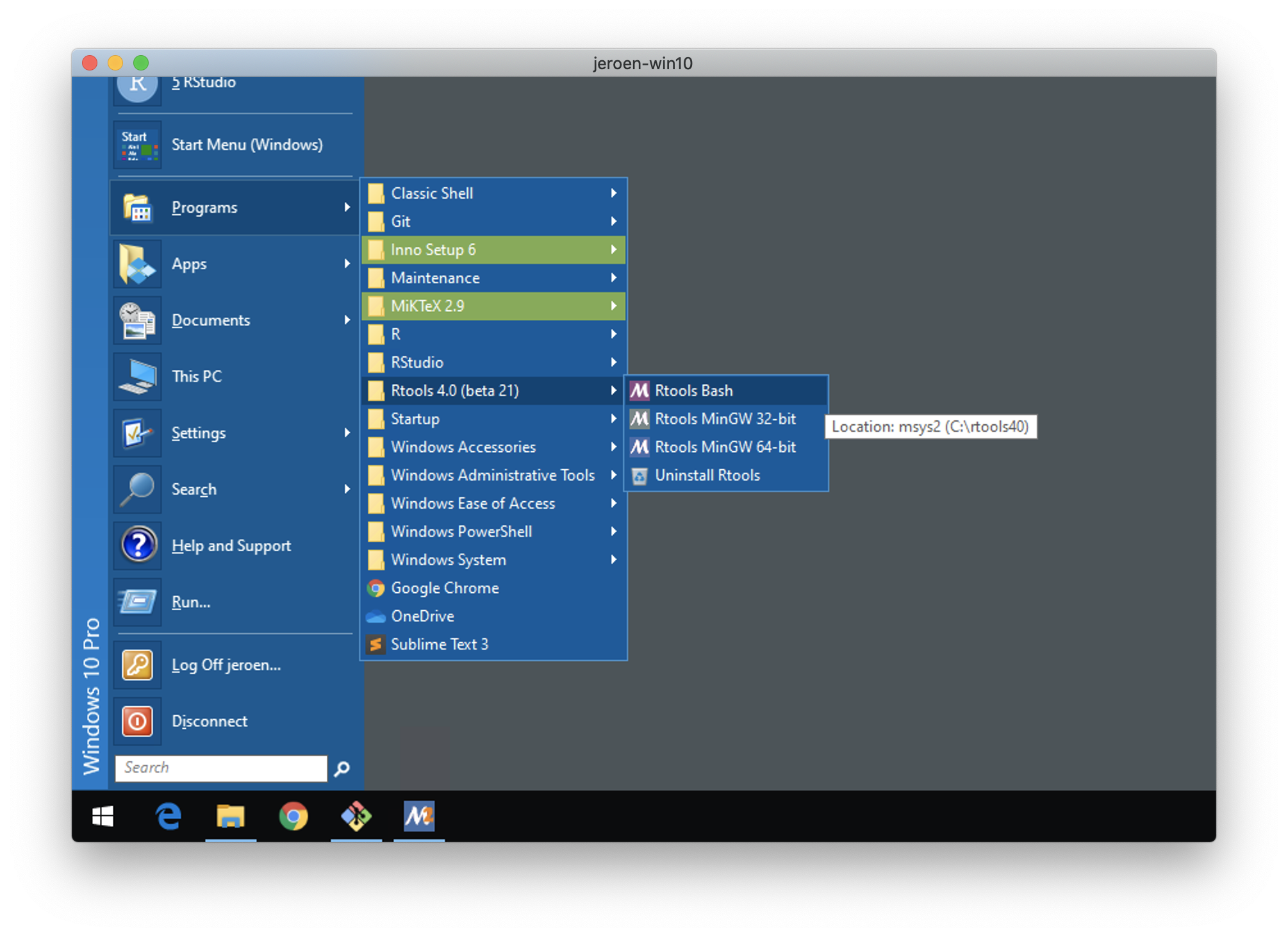
This wil open a bash shell from where you can interact with the system. Try running pacman --help to get started:
>> pacman --help
usage:  pacman <operation> [...]
operations:
    pacman {-h --help}
    pacman {-V --version}
    pacman {-D --database} <options> <package(s)>
    pacman {-F --files}    [options] [package(s)]
    pacman {-Q --query}    [options] [package(s)]
    pacman {-R --remove}   [options] <package(s)>
    pacman {-S --sync}     [options] [package(s)]
    pacman {-T --deptest}  [options] [package(s)]
    pacman {-U --upgrade}  [options] <file(s)>

use 'pacman {-h --help}' with an operation for available options
The most important pacman command is --sync or for short: -S. This command is used to refresh the index of available packages, and install packages in your Rtools. Type pacman -Sh to show the manual page for the pacman sync command:
>> pacman -Sh
usage:  pacman {-S --sync} [options] [package(s)]
options:
  -b, --dbpath <path>  set an alternate database location
  -c, --clean          remove old packages from cache directory (-cc for all)
  -d, --nodeps         skip dependency version checks (-dd to skip all checks)
  -g, --groups         view all members of a package group
                       (-gg to view all groups and members)
  -i, --info           view package information (-ii for extended information)
  -l, --list <repo>    view a list of packages in a repo
  -p, --print          print the targets instead of performing the operation
  -q, --quiet          show less information for query and search
  -r, --root <path>    set an alternate installation root
  -s, --search <regex> search remote repositories for matching strings
  -u, --sysupgrade     upgrade installed packages (-uu enables downgrades)
  -v, --verbose        be verbose
  -w, --downloadonly   download packages but do not install/upgrade anything
  -y, --refresh        download fresh package databases from the server
                       (-yy to force a refresh even if up to date)
In your bash shell it looks something like this:

Usually the first thing you want to do is run pacman -Sy which will refresh the package repository index from the server, so we know which packages are available:
# Update repo index
pacman -Sy
Let's try an example. Suppose you want to install the R package fftwtools from source. Try to run the following in R (it won't succeed!):
# Run this in R/RStudio
install.packages("fftwtools", type = 'source')
The compilation fails because this package requires a system library called FFTW:
* installing *source* package 'fftwtools' ...
** package 'fftwtools' successfully unpacked and MD5 sums checked
** using staged installation
** libs

*** arch - i386
"C:/rtools40/mingw32/bin/"gcc  -I"C:/PROGRA~1/R/R-4.0.0/include" -DNDEBUG          -O2 -Wall  -std=gnu99 -mfpmath=sse -msse2 -mstackrealign -c fftwtools.c -o fftwtools.o
fftwtools.c:28:9: fatal error: fftw3.h: No such file or directory
 #include<fftw3.h>
         ^~~~~~~~~
compilation terminated.
Go back to your Rtools bash shell and run the following pacman command to install fftw:
pacman -S mingw-w64-{i686,x86_64}-fftwThis command installs 2 new system packages: mingw-w64-i686-fftw and mingw-w64-x86_64-fftw.
Now that the fftw system dependency is available, try again to install the R package using the same line from above! This time it works!
Use pacman -Sl to get a list of available packages that you can install. The list matches the rtools-packages repository on Github, where we maintain the build scripts. It is a pretty long list, that starts with something like this:
>> pacman -Sl
mingw32 mingw-w64-i686-argtable 2.13-1
mingw32 mingw-w64-i686-arrow 0.17.0-1
mingw32 mingw-w64-i686-binutils 2.33.1-1 [installed]
mingw32 mingw-w64-i686-boost 1.67.0-9002
mingw32 mingw-w64-i686-bwidget 1.9.12-1
mingw32 mingw-w64-i686-bzip2 1.0.8-1 [installed]

....
mingw64 mingw-w64-x86_64-argtable 2.13-1
mingw64 mingw-w64-x86_64-arrow 0.17.0-1
mingw64 mingw-w64-x86_64-binutils 2.33.1-1 [installed]
mingw64 mingw-w64-x86_64-boost 1.67.0-9002
mingw64 mingw-w64-x86_64-bwidget 1.9.12-1
mingw64 mingw-w64-x86_64-bzip2 1.0.8-1 [installed]
In rtools (or msys2) all packages are prefixed with mingw-w64-i686- for the 32-bit version and with mingw-w64-x86_64- for the 64-bit version. For building CRAN packages, we usually need both 32 and 64 bit..
Use pacman -Su to update all packages that you have installed already. This can be combined with -y which, as explained earlier, refreshes the repository index:
>> pacman -Syu
:: Synchronizing package databases...
 mingw32 is up to date
 mingw64 is up to date
You can add --noconfirm to any of the commands to skip the confirmation. This is useful for unattended installations.
Find out more at the pacman website.
Some R packages do not use the correct flags by default and need a little help. You can pass additional compiler and linker flags by setting these environment variables:
LOCAL_CPPFLAGS: custom C/C++ flags passed when compilingLOCAL_LIBS: custom flags when linking
This works for any R package. An example is the old XML package. First install libxml2 in rtools:
# Run this in Rtools
pacman -S mingw-w64-{i686,x86_64}-libxml2
And then install XML like this:
# Run this in R
Sys.setenv(LOCAL_CPPFLAGS = "-I$(MINGW_PREFIX)/include/libxml2")
install.packages("XML", type = "source")
The $(MINGW_PREFIX) variable always refers to the root of the toolchain path, i.e. /mingw32 when compiling for 32-bit and /mingw64 when compiling for 64-bit.
The readme file in the r-windows/rtools-packages repository explains how to build your own system libraries, and possibly contribute them to rtools.
The same pacman libraries are used to build R packages are also used when building R itself! Have a look at the r-windows/r-base repository to see how we build R for Windows.
If you run a winbuilder-like build server, it can be useful to install all the available system libraries from pacman, and keep them up-to-date. Obviously this takes a lot of space; regular users shouldn't do this!
The script below updates and installs all packages from pacman:
# Update packages !
pacman -Syu --noconfirm

# Careful! Installs ALL the pacman packages !!
pacman -S --needed --noconfirm $(pacman -Slq | grep mingw-w64-)