A terminal UI for Dropbox, built with OpenTUI and Bun.
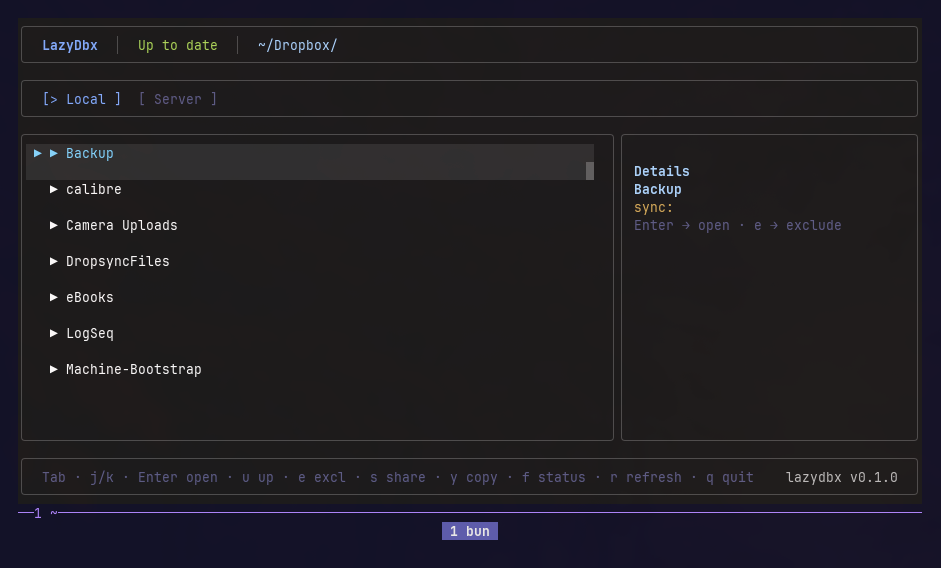
Browse your local and remote Dropbox files, manage sync, and share links — all from the terminal.
- Bun v1+
- Dropbox desktop client installed and running — either via
dropbox startor as a headless systemd service - A Dropbox App for API access (optional, enables Server tab — see below)
bun install -g @alexzeitler/lazydbxgit clone https://github.com/alexzeitler/lazydbx.git
cd lazydbx
bun installEach user creates their own Dropbox App. The app credentials and tokens stay on your machine (~/.config/lazydbx/config.json) and all API requests go directly from your computer to Dropbox — no third-party servers involved.
Go to https://www.dropbox.com/developers/apps and create a new app:
- Access type: Scoped access, Full Dropbox
- Permissions tab: Enable
account_info.read,files.metadata.read, andsharing.write
lazydbx initPrompts for your App Key and App Secret, saves them to ~/.config/lazydbx/config.json.
lazydbx authOpens the Dropbox authorization URL. Copy the code from the Dropbox page and paste it back into the terminal. Tokens are saved automatically.
To re-authorize (e.g. after changing scopes):
lazydbx auth --forcelazydbxBrowse files and folders synced locally in ~/Dropbox.
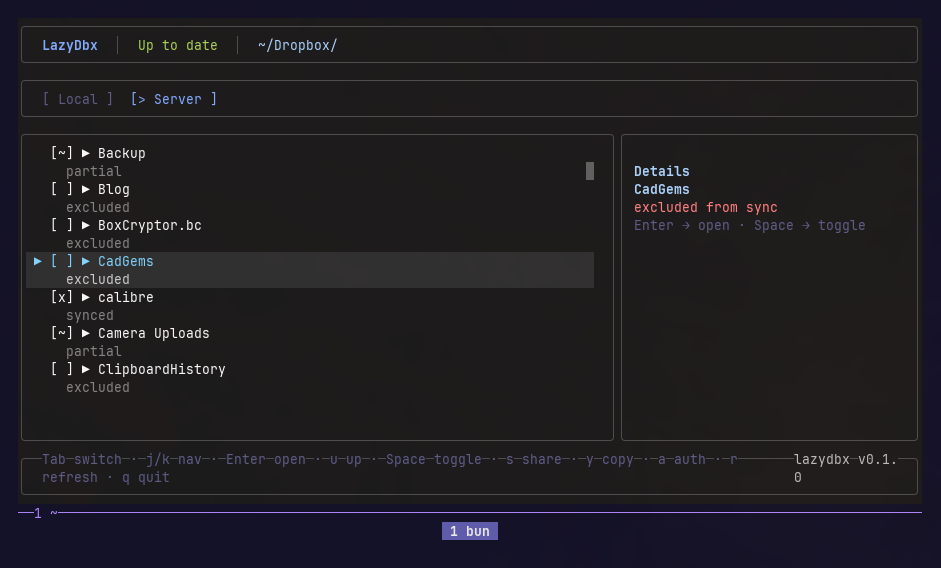
Browse the full Dropbox folder structure via the API. The local dropbox CLI can only list files that are synced locally — excluded folders and their contents are invisible. The Server tab uses the Dropbox HTTP API to fetch the complete folder structure directly from the server, including folders and files that have never been synced to this machine. This requires a configured Dropbox App (see Setup). Without it, the Server tab falls back to the local filesystem + exclude list.
| Key | Action |
|---|---|
Tab |
Switch between Local and Server |
r |
Refresh |
q |
Quit |
| Key | Action |
|---|---|
j/k |
Navigate up/down |
Enter |
Open folder or file |
u |
Go up one directory |
e |
Exclude folder from sync |
s |
Get share link |
y |
Copy last share link |
f |
Show file sync status |
| Key | Action |
|---|---|
j/k |
Navigate up/down |
Enter |
Open folder (or file if synced) |
u |
Go up one directory |
Space |
Toggle sync (exclude/include) |
a |
Show auth status |
Note:
dropbox excludeonly works at the folder level. Toggling sync on a file toggles the parent excluded folder.
Stored at ~/.config/lazydbx/config.json:
{
  "appKey": "your-app-key",
  "appSecret": "your-app-secret"
}
Token fields (accessToken, refreshToken, expiresAt) are managed automatically by the auth flow.