The resources in this repository are to assist HP Amplify partners becoming certified in deploying HP Anyware products. This document is a curated guide through HP Anyware documentation, and should be read in tandem with the linked documentation.
Important
Ensure you read the guide links and understand the key takeaways identified in each section.
After completing the reading and practical application labs, readers should be able to:
-
Navigate the HP Anyware Documentation.
-
Explain the HP Anyware Products and Solutions.
-
Download, Install, and Configure the HP Anyware Products.
-
Debug common issues.
-
Escalate issues.
There are a few key types of documentation on the HP Anyware Support site that you should be aware of. Knowing where to find specific information like system requirements, tutorials and, and changes is essential.
The reading and practical application will leverage these documents. All can be found at: https://anyware.hp.com/support.
- Specific to each product and version.
- Contain specific product information such as the: system requirements, features, steps for installing and configuring.
- Can be found in the Products section.
- Specific to products and version.
- Contains info pertaining to the product and version such as: new features, bug fixes, security updates, known issues.
- Can be found in the Products section.
- These articles provide more info regarding numerous topics. Some of the main topics include:
- Common issues and error codes.
- Additional info on complex topics.
- Can be found by searching the support site or browsing the knowledge centre: https://anyware.hp.com/knowledge.
-
Contains guidance on network planning, performance optimization, PCoIP session tuning, workload and bandwidth estimation.
-
This guide should be referenced to ensure best performance.
-
Can be found in the Products section.
Tip
Key Takeaway: Reader should be able to explain the 4 document types and navigate the HP Anyware Support site.
In 2021, HP acquired Teradici and began integrating Teradici’s Cloud Access software, with HP RGS ZCentral. During this integration process, HP created a new remote protocol software suite, called HP Anyware that combined the best of both technologies into a single product.
HP Anyware/PCoIP is a UDP based protocol that is host rendered, multi-codec and dynamically adaptive. Images rendered on the server are captured as pixels, compressed, encoded, and then sent to the client for decryption and decompression. Depending on the image, different codecs are used to encode the pixels sent since techniques to compress video images differ in effectiveness compared to those for text. The protocol also dynamically adapts its encoding based on the available bandwidth. In low-bandwidth environments it uses lossy compression where a highly compressed image is quickly delivered, followed by additional data to refine that image, a process termed "build to perceptually lossless".
Tip
Key Takeaway: Reader should be able to explain the PCoIP protocol and its key benefits.
HP Anyware enables PCoIP connections between users and remote workstations or desktops using any of several connection models dependent on number of users, location of users relative to remote workstations, your desire to incorporate public cloud workstations and your authentication requirements. Ultimately, your deployment architecture may be based on one or more of these connection models according to your corporate use case.
-
Unmanaged
- Direct connections.
-
Brokered
-
Managed connections with HP Anyware Manager.
-
Managed connections for on-site users.
-
Managed connections for WAN users connecting to on-premises resources.
-
Managed connections for on-site users and public cloud workstations.
-
Managed connections for remote workstations in multi-cloud environments.
-
-
Work-From-Home Options.
Note
Guide Link: HP Anyware Connection Models
Tip
Key Takeaway: Reader should be able differentiate between unmanaged (direct connect) and managed (brokered) environments.
- Unmanaged environments are typically faster to setup but lack centralized management.
- Managed environments simplify the management and connections but are typically more complex to deploy.
HP Anyware deployments are a combination of distinct components which make up the HP Anyware Solution. The documentation link provided below introduces the most common components you'll need to understand.
Note
Guide Link: HP Anyware Components
Tip
Key Takeaway: Reader should be able to explain the various HP Anyware components.
PCoIP Ultra protocol enhancements offer a significant step in PCoIP performance to meet the demands of next-generation remote workstation environments offering a faster, more interactive experience. PCoIP Ultra includes features such as CPU-Offload, GPU-Offload, Auto-Offload and AV-Lock that enable users in demanding industries such as media and entertainment, broadcast, game development or CAD to enjoy seamless access to graphics-intensive workloads delivered anywhere.
Tip
Key Takeaway: Reader should be able to explain the PCoIP Ultra Feature and how it can be leveraged to improve performance.
The architecture guide can be used by System Administrators to implement, install, and develop HP Anyware Solutions. It details information about PCoIP Protocol capabilities, components, and tips on how to architect HP Anyware Solutions for Public Cloud infrastructure and On-premises data-centres.
Note
Guide Link: HP Anyware Architecture Guide
Tip
Key Takeaway: Reader should be able navigate the Architecture guide.
IANA has assigned Port 4172 to the PCoIP Protocol. For a PCoIP Session to successfully start, certain ports must be opened to enable HP Anyware components to communicate.
Note
Guide Link: UDP Ports For PCoIP Technology
Tip
Key Takeaway: Reader should be able to explain the minimal port requirements.
The purpose of this guide is to prepare and provide capacity planning, optimization, and troubleshooting information for system administrators preparing their networks for PCoIP traffic or workloads for remote access using the PCoIP protocol. It acts as a troubleshooting and network planning guide.
Note
Guide Link: PCoIP Session Planning Guide
Tip
Key Takeaway: Reader should be able to provide guidance on PCoIP session capacity planning, optimization and troubleshooting steps.
The Anyware Software Client is an application that runs on the User’s local machine. It is used to establish PCoIP sessions with remote machines – virtual or physical. Remote connections can be made to machines running the Anyware Agents or equipped with a Remote Workstation Card. The Client is responsible for sending user input to the remote machine such as keyboard, mouse, microphone, etc.
This guide explains how to install, configure, and use the Software Client. Key Sections of the guide include the System requirements, Installing, Configuring, Features, Troubleshooting.
Also Read:
Tip
Key Takeaway: Reader should be able to describe the HP Anyware Client Software and navigate the administrator guide. Installation and Configuration steps will differ depending on the machines Operating System.
The Anyware Agent is a standalone software application installed on a remote machine that will securely encode the screen and efficiently stream (pixels-only) to the Anyware Client. There are two available Agent types for supporting both standard and graphics PC architectures.
This guide explains how to install, configure, and use the Anyware Agent. Key Sections of the guide include the System requirements, Installing, Configuring, Features, Troubleshooting.
Also Read:
Important
Please note that we only recommend using the Standard Agent on Virtual Machines.
Tip
Key Takeaway: Reader should be able to describe the HP Anyware Agent software and navigate the administrator guide. Installation and Configuration steps will differ depending on the machines Operating System.
HP Anyware Agents must be configured to communicate with a license server before connections can be made. HP Anyware offers two licensing models.
-
Cloud Licensing Service: In this model the “License Server” is hosted for the customer by HP Anyware in the Cloud. Customers can quickly deploy Agents without the need to install, configure, and maintain a license server. Cloud Licensing Service requires that the Agents be able to reach the HP License Portal.
-
Local License Server: Local License Model allows for the customer to deploy a license server inside their environment. Local Licensing should be used if your PCoIP agent runs in a restricted environment and cannot reach the HP License portal or if more control over the licensing is desired.
The information provided in the HP Anyware Licensing Models and guidelines mentioned in the HP Anyware Licensing can help you decide which licensing model to choose.
To view the status of the licenses, use the pcoip-list-licenses command. This command requires administrator password, and provides information about licenses that have been activated on HP Anyware License Server.
You can provide the administrator password inline using -p. If you do not, it will prompt you for a password.
Note
Guide Link:
Tip
Key Takeaway: Reader should be able to:
- Distinguish between the licensing models.
- Provide licensing guidance to customers based on their environment.
- Assist customers in managing their licenses via the license portal.
Anyware Manager is a management plane enabling users to configure, manage and monitor brokering of remote workstations. Anyware Manager enables highly scalable and cost-effective HP Anyware deployments by managing cloud compute costs by brokering PCoIP connections to remote Windows or Linux workstations.
Anyware Manager as a Service is a service managed by HP that enables Anyware users to securely access the cloud-based version of Anyware Manager.
Also Read:
Tip
Key Takeaways: Reader should be able to:
- Explain the Brokered Solution using HP Anyware Manager.
- Explain the prerequisites for HP Anyware Manager SaaS.
- Provide guidance on key features such as Mutli Admin login, Anyware Monitor, and MFA.
- Understand the Manager’s role in the “Brokered Solution”.
Multi Factor Authentication: Can configured in your Identity provider of choice when using Federated Authentication. Alternatively, you a radius server can be used. https://anyware.hp.com/web-help/cas_manager_as_a_service/anyware_manager_service/reference/awm_cam_duo/
Mutli Admin via SAML: Multi admin feature gives the main administrator the ability to add additional admins to the Manager Dashboard. Configuration is done in your SAML Identity Provider: https://anyware.hp.com/web-help/cas_manager_as_a_service/anyware_manager_service/admin_console/awm_saml_configuration/
Single Sign On: If using a non-federated authentication flow, single sign on is expected to work by default. When using Federated Authentication Single Sign On must be configured - https://anyware.hp.com/web-help/cas_manager_as_a_service/anyware_manager_service/admin_console/fed_auth/awm_fed_auth_sso_overview/
Tip
Key Takeaways: Reader should be able explain the major Anyware Manager features.
HP Anyware Connector is an access hub installed in the customer environment which facilitates Anyware Client connections to remote workstations. The HP Anyware Connector operates in conjunction with HP Anyware Manager Service to provide user authentication and entitlement for remote workstation access, including MFA.
Anyware Connector enables Anyware Manager to broker desktops or workstations across AWS, Google Cloud, Microsoft Azure, and On-Premises environments.
Note
- Based on your infrastructure, multiple instances of Connector could be required. One dedicated for LAN Connections and the other dedicated for WAN connections. However, it has to be solely managed by the customer in their environment with respect to OS updates, security patches etc.
- When applying a new configuration change to Internal Connectors, the active user sessions are not impacted as the 4172-session traffic does not traverse the Connector but for external connections all active external users will be disconnected. However, in both cases, all new connection attempts will fail till the update has been completed.
Tip
Key Takeaway: Reader should be able to:
- Explain the Connector’s role in the brokered solution.
- Navigate the Connector administration guide.
- Explain the system, network, and port requirements.
- Install and configure the Anyware Connector for the customer’s use case.
- Provide guidance on key configuration options – authentication, Federated Authentication, MFA, Internal vs External traffic.
- Debug common issues.
The Anyware Trusted Endpoints ecosystem is a robust architecture for PCoIP deployments, founded on zero-trust principles and providing extremely secure PCoIP deployments. There are three primary components in the Zero Trust ecosystem:
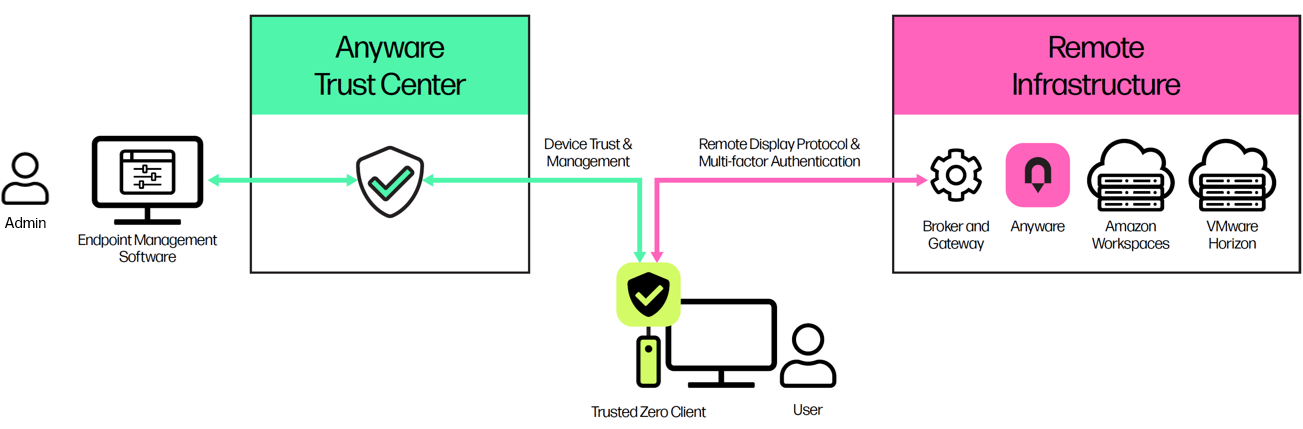
-
'Trusted Zero Clients'- used by end users to connect to their remote desktops. -
'Anyware Trust Center'- manages the Trusted Zero Clients, enforcing policies and integrity. The Trust Center communicates with both Trusted Zero Clients and End Point Management Software -
'Endpoint Manager/Endpoint Management Software'- provides IT admins a graphical management interface.
Tip
Key Takeaway: Reader should be able to identify the 3 main components of an HP Anyware Trusted Ecosystem.
The Trusted Zero Client is HP's next-generation standalone Anyware Client, securely connecting users to their HP Anyware remote desktops, as well as Amazon WorkSpaces and Omnissa Horizon View using the PCoIP and Blast protocols (support for Omnissa Horizon).
Deployments of Trusted Zero Clients are monitored and managed by the Anyware Trust Center, which enforces security and configuration settings for each endpoint device in your deployment.
The Trusted Zero Client Administrator Guide contains key sections such as the system requirements, configuration, and updating of the Trusted Zero Client.
Important
A Trusted Zero Client cannot be used without Registering to a Trust Center.
Tip
Key Takeaway: Reader should be able to describe the HP Anyware Trusted Zero Client, navigate the administrator guide, and provide guidance on system requirements and intial setup.
The Trusted Zero Client can connect to any Windows, Linux, or macOS host with an Anyware agent installed, as well as Amazon WorkSpaces desktops. Connections can be made directly (client direct to host), or brokered through Anyware Manager, an Anyware Connection Manager, or Omnissa (VMware) Horizon using both PCoIP and Blast protocols.
You can also automatically connect or customize your session login experience
Tip
Key Takeaway: Reader should understand how to connect to a direct or managed session successfully.
Also Read:
- Using Smart Card to Authenticate a Session
- Connecting to a Session in Kiosk Mode
- Connecting to Omnissa Horizon Hosts using Proximity Cards
- Managing Connections & Desktops
- Disconnecting from a Remote Host
Audio: Stereo audio output and mono audio input are supported and enabled by default.
Connection Health Indicator: The Connection Health Indicator gives you quick feedback on the quality of your active remote session.
Display Support: The Trusted Zero Client supports a maximum of four displays, with a maximum resolution of 4K UHD (3840×2160).
USB Support: The Trusted Zero Client supports redirecting USB devices to a remote session. Administrators can set rules governing allowed and disallowed devices, device classes, or device protocols.
Tip
Key Takeaway: Reader should be able to explain the major Trusted Zero Client features.
The Trusted Zero Client allows users to configure a limited number of settings via the pre-session interface (before connecting to a remote session). All configuration settings are available from the Settings menu at the top of the Trusted Zero Client pre-session display.
Tip
Key Takeaway: Reader should be able to find the Trusted Zero Client settings and understand how to make configuration changes.
The Trusted Zero Client and Tera2 Zero Client are different devices with different functionality. This page highlights some of the important differences between the two.
Tip
Key Takeaway: Reader should understand the major differences between the Anyware Trusted Zero Client and Legacy Tera2 PCoIP Zero Client.
If you encounter a problem setting up or using the Trusted Zero Client, there are several troubleshooting and support resources you can access.
The Trusted Zero Client and its related components, including the Trust Center and the PCoIP agent, write log files that document processes and interactions with other services.
Tip
Key Takeaway: Reader should understand how to view logs and generate a support bundle.
The Anyware Trust Center provides a management and security plane for a Trusted Zero Client deployment. Using the Anyware Trust Center, administrators can register Trusted Zero Clients, manage their capabilities and features, enable and disable connections, and monitor access behavior.
The Anyware Trust Center is an application composed of multiple services on a single VM. In addition to its internal services, it also communicates with your Trusted Zero Client endpoints, Endpoint Manager/EMS, and the OTA Repository.
TCP:32443- Used for communication between the Trust Center and the Trusted Zero Clients.TCP:32443- Used for communication between the Trust Center and Endpoint Management Software.TCP:443- 443/HTTPS is used by the Trust Center to communicate with the OTA repository.
Important
The Anyware Trust Center is an API service and has no user interface. All user interaction and interfaces are provided by Endpoint Manager, also called Endpoint Management Software (EMS). Endpoint Management Software is available from the hardware manufacturer of your Trusted Zero Client. Be sure to confirm that your Endpoint Management Software is compatible with the Trust Center version you intend to use.
Tip
Key Takeaway: Reader should be able to describe the functionality of the HP Anyware Trust Center, the components it interfaces with, and navigate the administrator guide.
The Anyware Trust Center is an application composed of multiple components and services which communicate internally within a cluster and securely communicate with Trusted Zero Clients and the Endpoint Manager. Trusted Zero Clients
Important
At this time, external services are not supported. Future releases of the Anyware Trust Center will support multi-node environments.
Important
We recommend backing up the Anyware Trust Center and all persistent storage volumes.
Tip
Key Takeaway: Reader should understand Trust Center application and its data persistence.
Pre-installation planning is highly important before setting up a Trust Center. Trusted Zero Clients are unable to communicate with the Trust Center via just raw IP Address. DNS Records must be allocated for the Trust Center and its services and must be able to communicate by FQDN. Below are example records using the domain name "example.com".
'tc.example.com'- DNS record for the Trust Center'api.tc.example.com'- DNS record for the Trust Center API endpoint'register.tc.example.com'- DNS record registration endpoint'ota.tc.example.com'- DNS record for Over the air artifactory service endpoint'endpoint-connector.tc.example.com'- DNS record endpoint connector service endpoint
Tip
If manually registering a Trusted Zero Client to a Trust Center, register.tc.example.com will be used.
Anyware Trust Center Installation Overview
Key Takeaway Readers should understand the DNS requirements for Anyware Trust Center
Licensing and Subscription Tiers: Most Anyware Trust Center functionality requires a subscription. Basic functionality is available for free for users who have small deployments, or who are testing proof-of-concept scenarios.
Endpoint Management: The Anyware Trust Center can manage many endpoint devices.
Anyware Trust Center Management: Any number of users can access the Anyware Trust Center via your EMS software at once.
Tip
Key Takeaway: Reader should be able explain the major Trust Center features. Provide guidance on system requirements and setup.
If you encounter a problem setting up or using the Anyware Trust Center, there are several troubleshooting and support resources you can access.
HP Anyware Products provide native and customizable security features. Once of the most important and often customized are the certificates. All HP Anyware products come installed with certificates to ensure end-to-end encryption out of the box. It is important to note that the default certificates generated by HP Anyware are self-signed. It is recommended that customers replace the self-signed certificates with their own TLS certificates signed by a Trusted Root CA to ensure certificate verification in production.
One of the most common cert customizations is on the HP Anyware Connector as it is a hub between client machines and the remote machines and facilitates authentication between Client, Manager, Identity Provider, and Agents.
Connector certificates:
-
TLS certificate for connections
- This is the certificate used when making connections between the Client and the Connector via HTTPS. You can think of this as the “connection certificate”.
-
Certificate for LDAPS communication
-
This is the certificate on the Domain Controller and enables secure communication between Connector and DC/Active Directory
-
If the DC cert is self signed, verification can be skipped by running the --ldaps-insecure flag.
-
Certificates must be in PEM format. Certificate validation can be skipped to use self-signed certificates, especially when testing or troubleshooting, but not recommended for production use.
Read:
- FAQ Security
- Architecture Guide | Security
- General certificate info
- Connector Certificate Preparation
The PCoIP Connection Broker Protocol (hereafter referred to as the Broker Protocol) is a web application program interface (API) used by PCoIP clients to securely communicate with connection brokers that manage PCoIP sessions and resources.
Included in the links below is the Leostream Broker quick start guide. This guide is managed by Leostream, but we have included the link as it is one of the most common brokers used with PCoIP software.
Note
Tip
Key Takeaway: Reader should be able to explain the function of a 3rd party Connection Broker.
The PCoIP Connection Manager and the PCoIP Security Gateway are components of HP Anyware and can be deployed together as a set or individually. The PCoIP Connection Manager enables connections between PCoIP clients and PCoIP agents installed on remote desktops. It works together with a third-party connection broker to authenticate users, query available desktops and applications, and then establish a PCoIP connection between the client and the selected desktop.
The PCoIP Security Gateway enables WAN users to securely access their remote desktops via the Internet without a VPN connection. Multiple instances of the Connection Manager and/or the Security Gateway can be deployed to handle mixed LAN and WAN access points, enable security gateway failover, or for scaling large systems.
Note
Guide Link: PCoIP Connection Manager And Security Gateway
Tip
Key Takeaway: Reader should be able to:
- Explain the role of the Connection Manager/Security Gateway in the brokered solution (3rd party broker).
- Provide guidance on system and network/port requirements.
- Install and configure the CMSG for use with a 3rd party broker.
HP Anyware is fully compatible with third-party brokers without the deployment of Anyware Connectors or features included with Anyware Manager. When using a third-party connection broker, PCoIP connections are brokered in conjunction with the Connection Manager and Security Gateway.
Note
Guide Link: Using Third Party Connection Brokers
Tip
Key Takeaway: Reader should be able to provide guidance on third-party connection brokers and how they interface with the Anyware Connection Manager and Security Gateway (CMSG).
The following section contains the relevant links for prerequisites, downloading, and installing each product. Each can be found in the specific products Adminstrator’s Guide.
Please refer back to these links when completing the Practical Application section.
| Download Link | Windows | Linux | MacOS |
|---|---|---|---|
| Installation Link | Windows | Linux | MacOS |
| OS | Download Link | Installation Link | ||
|---|---|---|---|---|
| Windows | Standard Agent | Graphics Agent | Standard Agent | Graphics Agent |
| Linux | Standard Agent | Graphics Agent | Standard Agent (Ubuntu) | Graphics Agent (Ubuntu) |
| Standard Agent (RHEL/Rocky) | Graphics Agent (RHEL/Rocky) | |||
| macOS | Graphics Agent | Graphics Agent |
| Note: Please make sure to adhere to the system requirements, pre-requisites and network configurations as mentioned in the Client and Agent Admin Guides before installation. |
|---|
-
Download and Install the Client and Agent above.
-
Anyware Connector Download Link
-
Anyware Connector Installation Link
There is no need to deploy a “Manager” machine when using the Cloud Manager (SaaS). Instead, please verify the following:
-
Please try logging into cas.teradici.com with your enterprise email address. The manager allows for 1 main administrator. When we install the connector, whosever account was used will be the main admin, additional administrators can be given access to the Manager Dashboard via SAML. Alternatively, some customers opt to use a “group” account such as itadmins@domain.com
-
When logging in for the first time it will ask for a registration code. This is the same which will be used to activate the Agents if using Cloud Licensing.
For the purpose of troubleshooting, it can be helpful to first identify whether the problem occured during the connection attempt (pre-session) or during the PCoIP session.
Pre-session Issues A Pre-session issue is any problem that occurs before the session has been fully initalized. For example, a user attempts to connect to their remote machine but it fails due to the Agent being unreachable. This would be considered a pre-session issue as it occured during the connection attempt.
Session Issues A Session issue is any problem which occurs during the PCoIP session - after a successful connection attempt. Some examples are lag/sluggishness, an unintended disconnection while working, etc. Log files such as the pcoip client log and the pcoip-server log should be used for debugging. Keep in mind, the pcoip-server log is only generated if a PCoIP session has been initated. If the server log is not present then we can assume it is not a session issue.
Tip
Key Takeaway: Reader should be able to identify pre-session vs session issues.
If you encounter an issue while installing or using HP Anyware Components, it is possible to generate a support bundle to investigate and resolve the issue. The support bundle gathers statistical and diagnostic information and packages them into a single, compressed file. The statistics are logged at different detail levels on different products. Understanding how to read these log file entries can assist in troubleshooting potential network issues impacting a user's experience.
This guide can provide instructions on how we can set the appropriate logging level for different PCoIP products and extract the required log files for investigation. Another guide example can help you understand the support bundle for HP Anyware Windows PCoIP Agent and the type of logs it generates.
Any issue which disrupts the normal functioning of a network leading to a degraded performance, partial or complete loss of connectivity and affecting LAN’s, WAN’s or even home networks fall under this category. The most common causes are hardware failures, network congestion, configuration errors, ISP Issues etc.
All HP Anyware PCoIP Agents and Software Clients log network statistics in the logs such as latency, round trip time, bandwidth, average receive/transmit bandwidth, packet loss etc. All these network statistics are stored in the PCoIP server logs. Refer to the guide on how to identify the network issues in the PCoIP logs.
A session disconnect occurs when an active HP Anyware Session is unexpectedly terminated. This can happen due to issues such as VPN Connection, network connectivity, session timeout etc. There are several disconnect codes used in event logs to identify the cause of a session disconnect for HP Anyware PCoIP Agent.
When connecting to a PCoIP Standard Agent for Windows, PCoIP Graphics Agent for Windows, PCoIP Standard Agent for Linux or PCoIP Graphics Agent for Linux the connection fails with one of the following messages:
-
Error: Unable to connect to myhost.cloudaccesslabs.com. Please enter a new name or IP address.
-
HP Anyware PCoIP Software Client - Error: The network connection has been lost
-
HP Anyware PCoIP Software Client - Alert: This desktop has no sources available or it has timed out. Please try connecting to this desktop again later.
Please refer to the guide for various causes and resolution steps which can be applied to resolve the issue.
HP Anyware allows configuring the Anyware Agent to optimize the PCoIP protocol behaviour for local network conditions. If fine tuning of user experience is needed, PCoIP session parameters impacting frame rate, image quality and bandwidth can be tuned by adjusting Windows GPO variables for Windows Agents, pcoip-agent.conf file on Linux Agents and com.teradici.pcoip-agent.plist on macOS Agent
Apart from the above hyperlinked guides, you can also utilize the session performance optimization guide and review the user experience profiles in it and configure the session parameters as per your respective environment usage.
Log Analyzer is triggered by an Azure function and parses log files present in the uploaded support bundle to search for any warnings/problems using the signature files. Once parsing is completed, Log Analyzer will map knowledge base articles from https://help.teradici.com for these warnings/problems using diagnostics files and outputs or emails the report file with summary information in .html format.
LogAI Uploader: https://help.teradici.com/s/loguploader
Example of the LogAI generated reports and KBs:
In the event a technical issue cannot be resolved, issues can be escalated via a support ticket. To escalate a technical issue:
-
Browse to https://anyware.hp.com
-
Select Contact Support and login. Register if needed.
-
Select the Technical Support category. You will be prompted for information about your deployment and the topic of your issue.
-
If the populated KB article does not resolve your issue, please select I need additional guidance to create a support ticket
-
When submitting the ticket, include relevent info such as products used, error codes, and logs. Be sure to set the serverity
-
A Support Representitive will reach out to assist you as soon as possible.
Tip
Key Takeaway: Reader should be able to describe how and when to escalate a technical issue.
-
How do I find the PCoIP log files and set logging level for different PCoIP products?
-
Error: The Certificate for the Domain Controller is Untrusted or Invalid
-
Cannot connect: Get an ERROR: Failed to communicate with Connection Manager
-
Cannot connect to multiple monitors when using NVidia GRID GPU
-
Steps to activate HP Anyware licenses in offline environment
-
HP Anyware Instructions for Consumer Grade NVIDIA GPUs (e.g. GeForce RTX 2080)
The goal of this simulation lab is to setup and establish an Internal unmanaged (direct connection) between Windows Client and Windows Standard Agent. The steps are similar for Linux and Mac OS (Operating System).
If the target remote machine is a desktop, please use the Graphics Agent.
-
Please check the System requirements of both Software Client, and Standard Agent before proceeding further
-
Browse to the download site https://anyware.hp.com/find/product/hp-anyware and select the Windows Client and click on “Downloads and Scripts” to download the latest version of Client.
-
Browse to the download site, ideally on the Agent machine itself, and select the Windows Standard Agent to download the latest version. You may be prompted to login.
-
Once both software’s have been downloaded and installed, kindly ensure to check the necessary TCP/UDP ports opened/configured between Client and Agent as per the guide
-
Before connections can be made, the Agent must have an active license. Please follow the steps in the Agent Admin Guide to use your Cloud License Registration Code.
-
Open the client software and follow the steps here Admin Guide to create a new connection to the Windows Agent
The goal of this simulation lab is to establish an internal brokered connection between Windows Client and Windows Agent using Anyware Connector and Anyware Manager as a Service
-
From the Simulation Lab 1, we already have a Client and Agent setup ready. Kindly note that the Agent machine should be domain joined for this simulation.
-
Next, we need a new machine which will host the Anyware Connector. Kindly follow the system requirements, prerequisites, network and firewall configurations, DNS Name resolution required and create a new machine accordingly.
-
Download and install the Connector on the new machine by following Steps 1 - 3 in the installation guide.
-
To install a new Connector, you must generate a token from the Manager Admin Dashboard. Kindly log into “cas.teradici.com” and follow steps 4 & 5 from the guide to configure the Connector as per your environmental requirement.
-
Since this connector will be serving internal connections, the connector must be configured with the “--enable-security-gateway" flag to “false” when executing the configure command on the connector (ex: --enable-security-gateway=false). When set to false, the connector/manager will handle pre-session, authentication, and entitlement of machines. Once the UDP 4172 session is ready to be initiated, the client will send traffic directly to the agent machine.
Note
When set to True for external, session traffic (4172) traverses the Connector
-
Once the configure command has executed successfully and all of the containers have started, kindly verify the connector health status in the Anyware Manager (AWM) Dashboard
-
Before connections can be made, the intended user must be entitled to a remote workstation/s. This can be done in the Anyware Manager (AWM) “Workstations Tab”. Follow the guide and add your agent and assign the testing user to the machine.
-
Connect to a remote workstation using the PCoIP Client using the guide
Note
By default, security-gateway is set to true, which means both the internal and external clients can connect but beware that internal clients are passing through the security gateway which is not optimal. Hence, we recommend you deploy two Anyware Connectors, one with security gateway enabled to handle the external clients and one with security gateway disabled for the internal clients.
The goal of this simulation lab is to establish a brokered connection between Windows Client and Windows Agent using On-Premises installations of Local License Server and Anyware Connector
-
From the Simulation Lab 1, we already have a Client and Agent setup ready. Kindly note that the Agent machine should be domain joined for this simulation as well.
-
In the prior labs cloud licensing was used. In this lab, we will be using Local License Server. For this we will need to deploy a new Windows or Linux machine which will host the local license server (either offline or online) by following the system requirements guide . It is suggested that if using a Local License Server to use an “Online” LLS, but for customers with no internet access, the offline version can be used.
-
Then, kindly proceed with installation of Offline LLS or Online LLS based on your environment's requirement. For this setup, we will proceed with offline setup.
-
Offline setup can be done in 2 ways, opening a temporary internet-connection on the primary LLS machine OR installing with No Internet Connection machine, to download the LLS software and its dependencies and then manually transfer it to the primary LLS machine.
-
The Local License Server hosts the activation codes and needs to match the license portal. Since this Local License Server (LLS) machine does not have access to the internet access, steps must be taken to ensure the information is consistent between the portal and Local License Server. Please use the guide to complete the offline activation.
-
Now, we need to configure the Agent to use the Local License Server. This can be done in two ways: On each agent or on the Connector by using the flag “--local-license-server-url” with the configure command (Step xi) and entering the FQDN or IP Address of the LLS URL on the connector machine. Configuring on the Connector is typically recommended to avoid configuration on many agent machines. The flag will set the URL for PCoIP License Server to be used for all PCoIP Sessions. (As discussed, for direct connections we can configure the Agent to communicate with the the LLS via URL and port number. For Windows Agent see local group policy editor)
-
Now that we have the License Server installed, we need to deploy a new machine which will host the On-Premise Anyware Manager. Please follow the system requirements, network and firewall configurations and create a new machine accordingly
-
Proceed with installing the Anyware Manager with default configuration and then access the Admin Console of the Anyware Manager
-
Lastly, we need a machine which will host the Anyware Connector. Kindly follow the system requirements, pre-requisites, network and firewall configurations, DNS Name resolution required and create a new machine accordingly
-
Then, download and install the Anyware Connector on the machine by following the Steps 1 - 3 steps mentioned in the installation guide.
-
We would now require a Anyware Connector token to be generated from the Anyware Manager Admin Console Dashboard. Kindly log into Anyware Manager Admin Console and follow steps 4 & 5 from the guide to configure the Anyware Connector as per your environmental requirement and the necessary flags.
-
Since this setup is focused on external connections also, it is recommended to set the “enable-security-gateway" flag to “true” and set the Public IP using the “--external-pcoip-ip" flags when executing the configure command on the connector (ex: --enable-security-gateway=true)
-
Once the connector configure command has executed successfully, verify the connector health status in the AWM Dashboard
-
You will need to add the remote workstation/s via the AWM Workstations Tab before we can connect to the machine. Follow the guide and add your respective agent/s. You will also need to entitle the test user to this machine.
-
Open the Anyware Client and create a new connection to the Anyware Connector, steps can be found in the guide
The goal of this simulation lab is to understand how to setup a basic HP Anyware Trusted Endpoint environment using Trust Center and Trusted Zero Client.
Note
While not covered in this Lab, Endpoint Management Software is a critical component used to manage the devices and their Firmware. Endpoint Management Software and documentation is provided by the each Trusted Zero Client vendor. The current HP Anyware Branded EMS is provided by Leadtek and is expected to work with any model of Trusted Zero Client. Please consult the vendor specific documentation for more info.
-
We will be setting up an instance of the Anyware Trust Center and then register our Trusted Zero Client to it. Please ensure the prerequisite port & network requirements are met by following the respective Trust Center & Trusted Zero Client product guidelines.
-
The Anyware Trust Center can be installed in 2 ways, Internet-connected or dark-site environment. We will use the Internet-connected method in this Simulation Lab.
a. For the Internet-connected setup, ready a machine that meets the following: minimum requirements
b. For Dark-site/Airgapped environments, setup requires two machines: a temporary internet-connected machine to assemble the installer bundle, and the offline machine which will host the Anyware Trust Center. the Admin guide to setup the machines as per requirements.
Caution
When using the Darksite/Airgapped method, the OS on the temporary internet-connected machine must be exactly identical to OS of the darksite (unconnected) machine. Differences can cause the installation to fail due missing packages or conflicts.
-
Since the Anyware Trust Center does not support communication via raw IP addresses, FQDN (FullyQualifiedDomainNames) will be required. Identify or create 1 base domain for the Anyware Trust Center which will be used to construct other 4 subdomains. You will use this in multiple locations during setup, so record this info.
-
Next, we will use the base domain to create the respective DNS records. Please follow the example outlined in the guide
Note
The subdomain DNS records which can be either A-records or CNAMEs, should be pointing to the same IP Address of the Trust Center, or CNAMEs aliasing to the base Trust Center FQDN.
If you plan to support automatic Anyware Trust Center discovery by endpoints, you must also create a CNAME record that redirects anywaretrustcenter to register.
-
Next, follow Steps 4 to 6 from the Admin Guide to perform below steps; a. Obtaining Trust Center Installation script from the download site by providing the base domain name determined earlier b. Verify or create a default gateway for communication with Trusted Zero client c. Execute the Installation script.
-
At this point, the Trust Center should be installed. To verify the installation was successful, run the following command: sudo ./trust-center-ctl diagnose All the services should report healthy.
-
If the Trusted Zero Client is being powered up for the first time, you will be prompted to setup the inital configuration. Complete the setup using the steps in the Admin Guide
-
Before the Trusted Zero CLient can be used, it must registered to your Trust Center. Steps to register the TZC can be found here
-
Please follow the steps provided in the Admin Guide - Connecting to a Remote Host to create your first connection.
The Trusted Zero Client can connect to any Windows, Linux, or macOS host with an Anyware agent installed, as well as Amazon WorkSpaces desktops. Connections can be made directly (client direct to host), or brokered through Anyware Manager, an Anyware Connection Manager, or Omnissa Horizon using both PCoIP and Blast protocols.