Glyph is a simple yet powerful Visual Studio Code extension that helps developers highlight, track, and manage task-related comments directly within their codebase. Whether it’s @TODO, @FIXME, or your own custom keywords like @BUG, @IMPROVE, or @REFACTOR, Glyph ensures that nothing slips through the cracks.
Stay organized. Stay productive. Stay focused.
-
Instant Detection
Highlights keywords like@TODO,@FIXME, or any custom tag as you type — no save required. -
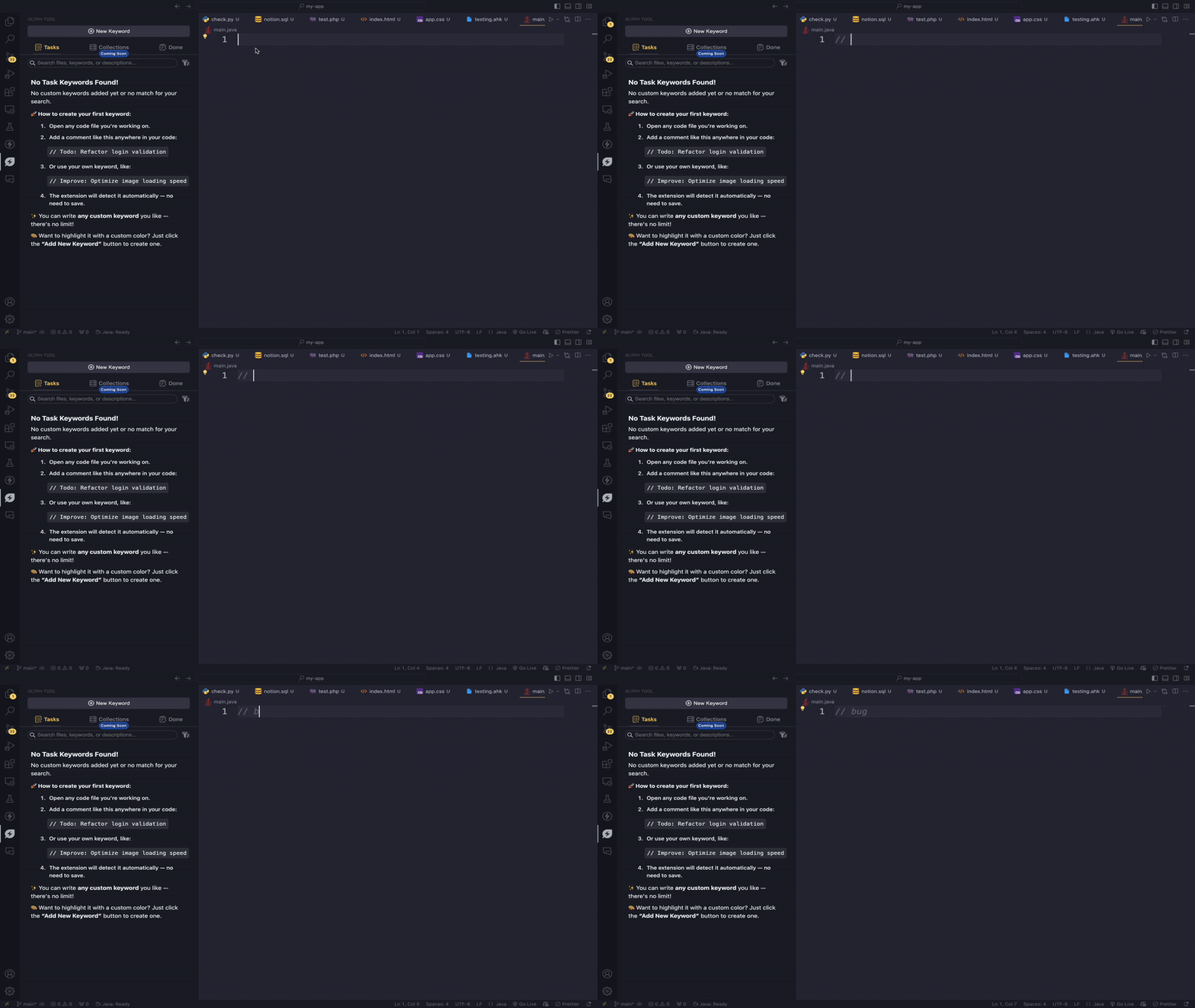
Custom Keywords
Define your own task labels like@OPTIMIZE,@DEBUG, or@REFACTOR, and assign unique colors to each. -
Central Task View
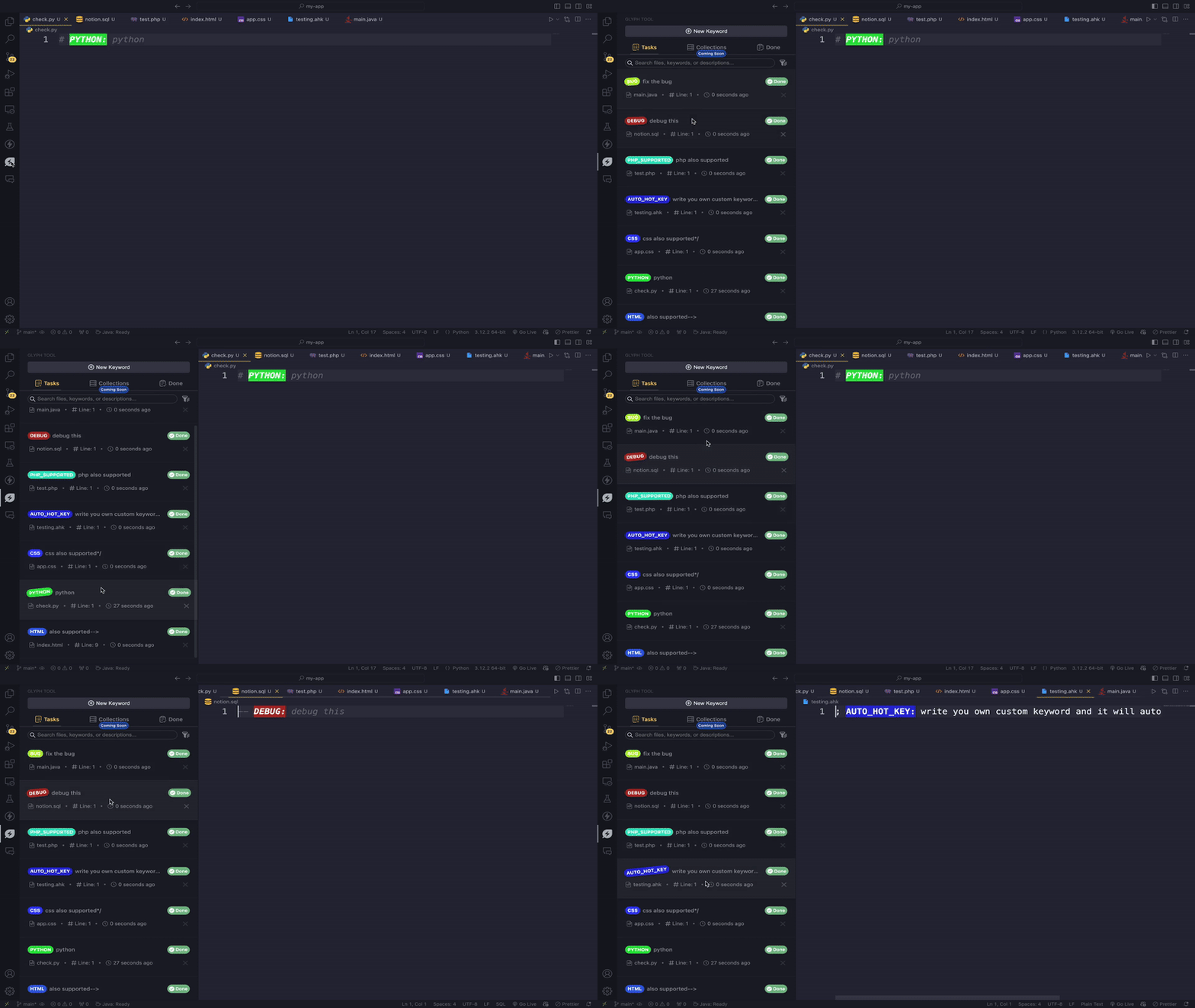
All keyword-based comments are listed in a dedicated Glyph sidebar panel. -
Done Tab
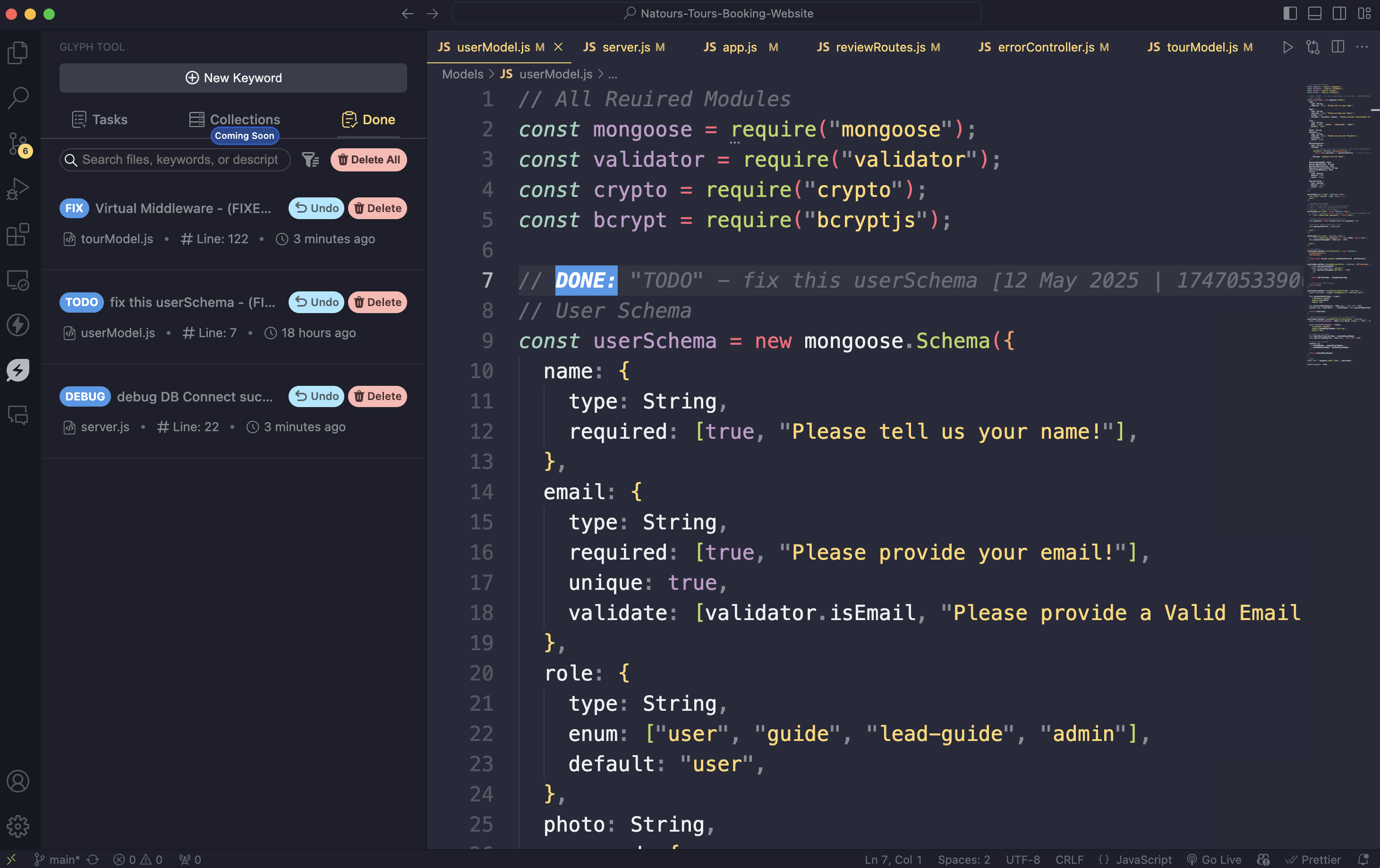
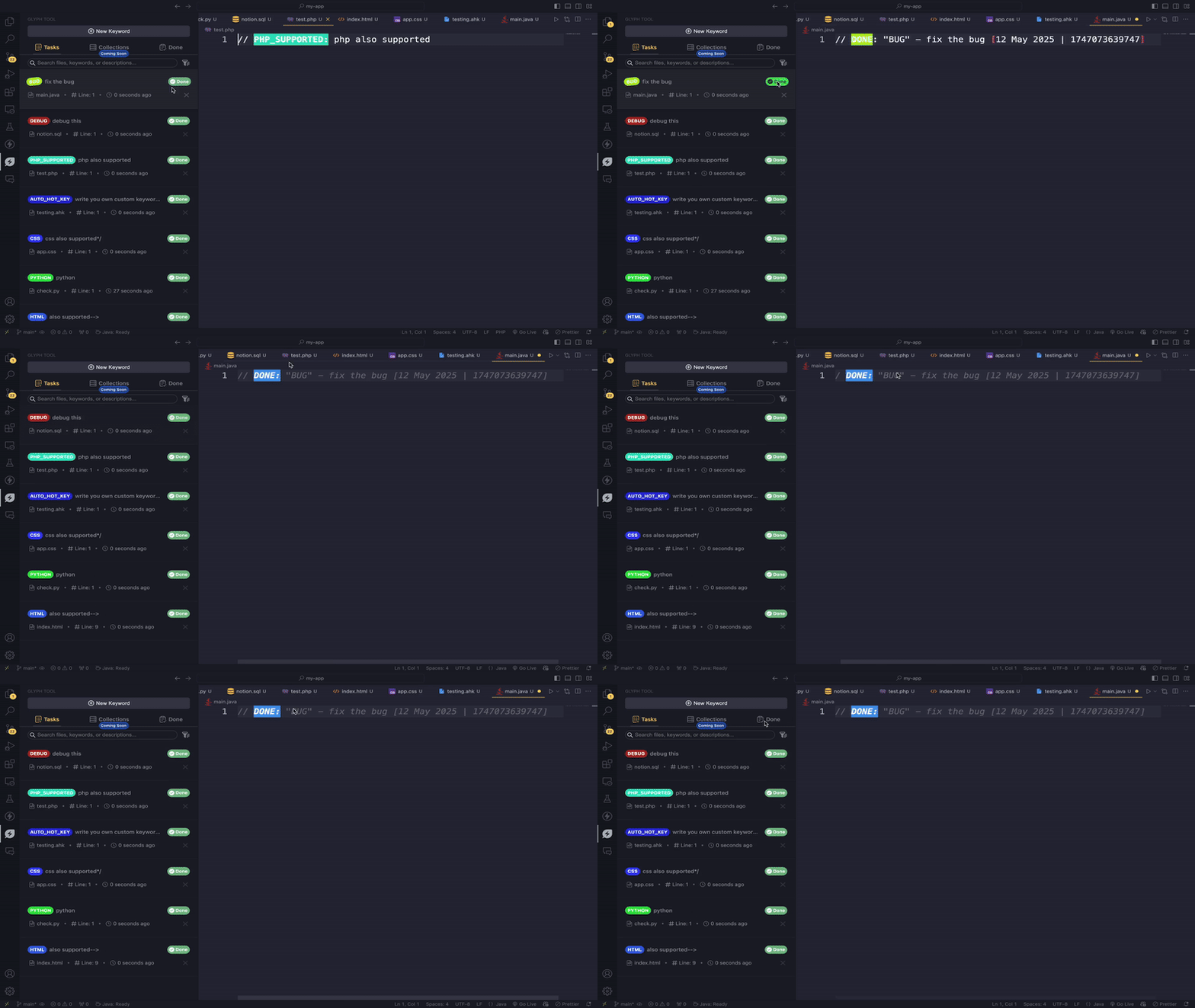
Mark tasks as done, undo them, or delete permanently to declutter your workspace. -
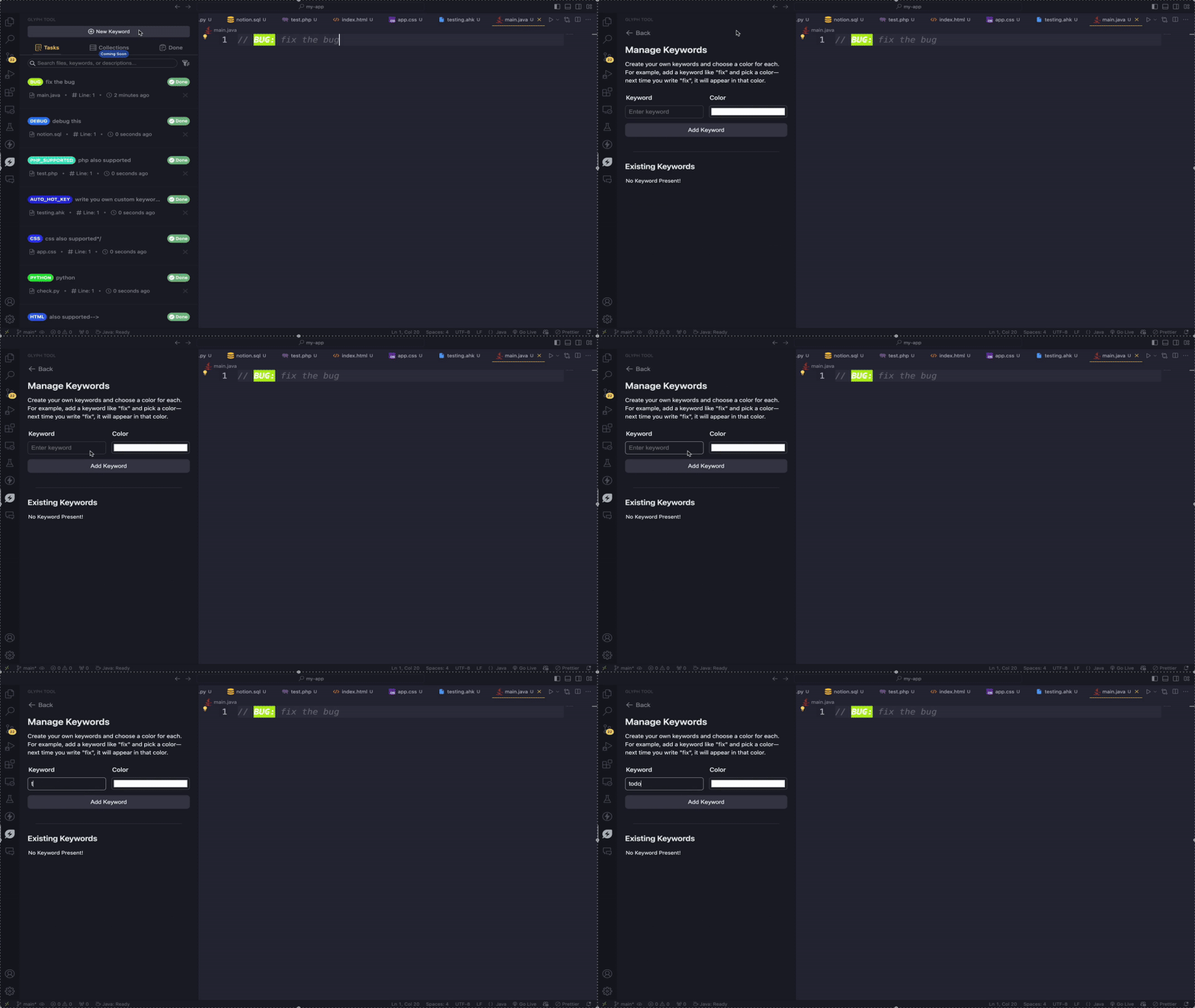
Keyword Manager
Easily add, edit, remove, and assign colors to your custom keywords. -
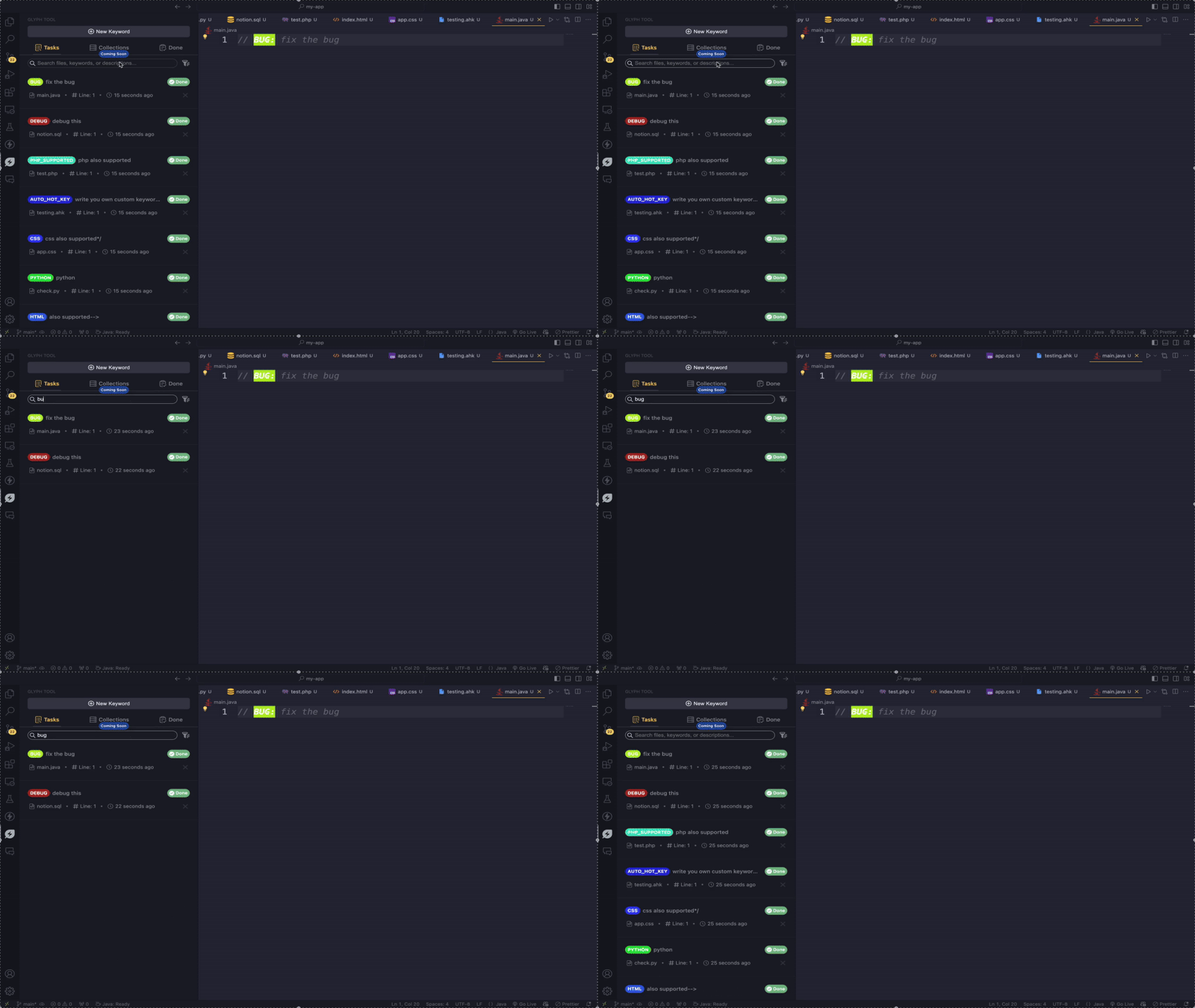
Search and Filter
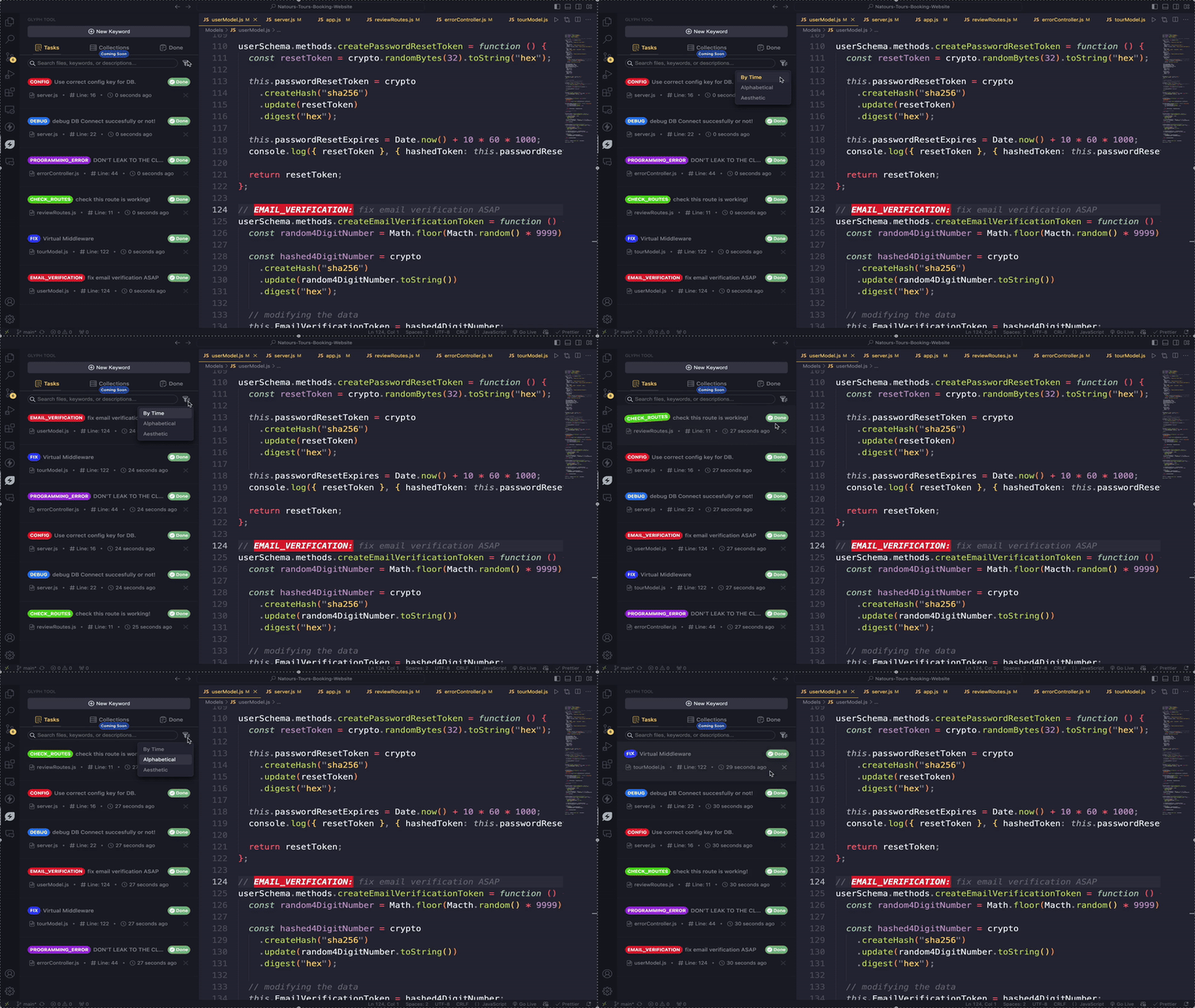
Search tasks by file, keyword, or description. Apply filters to narrow down exactly what you need. -
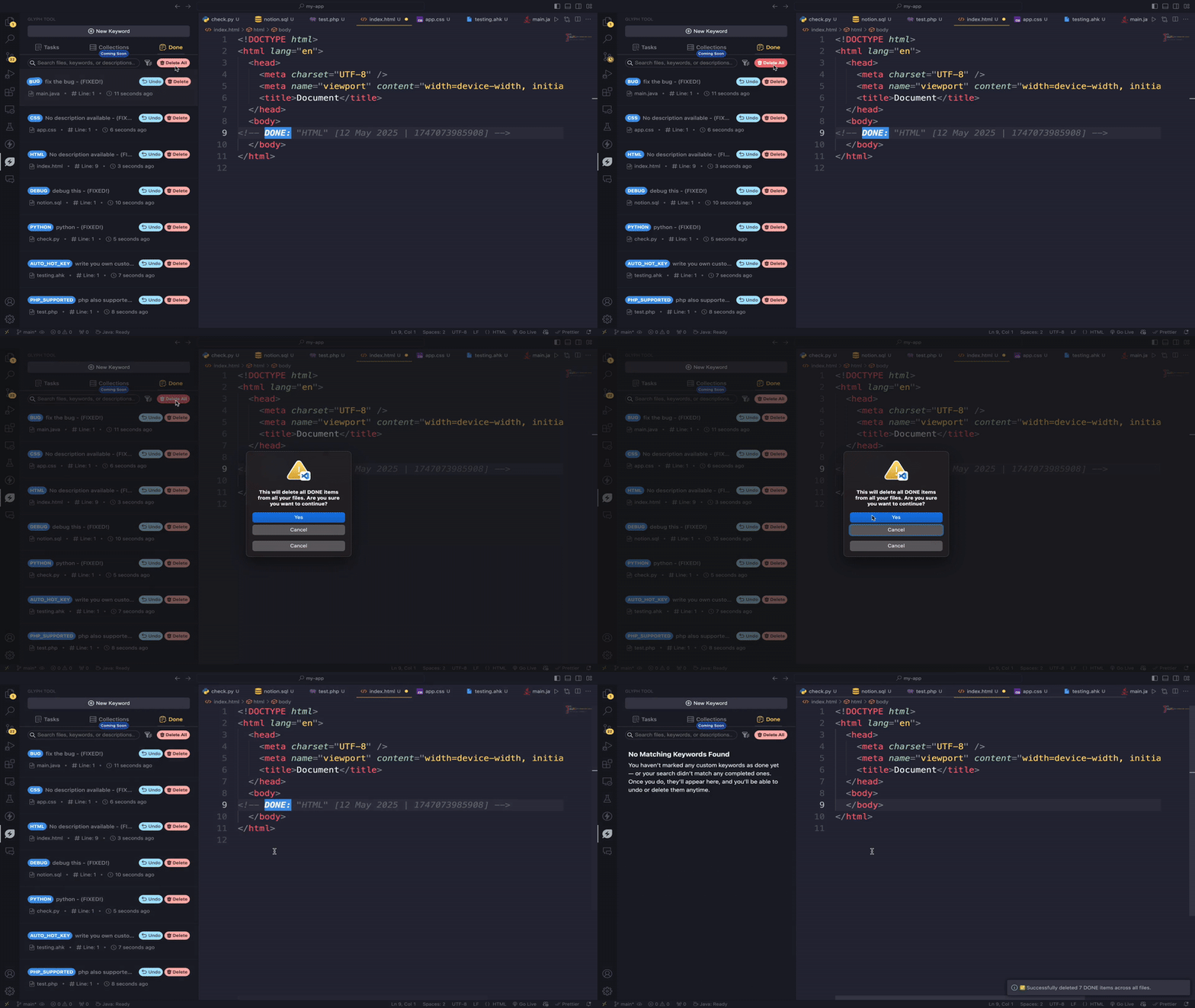
Bulk Delete
Clean up all tasks with one click. -
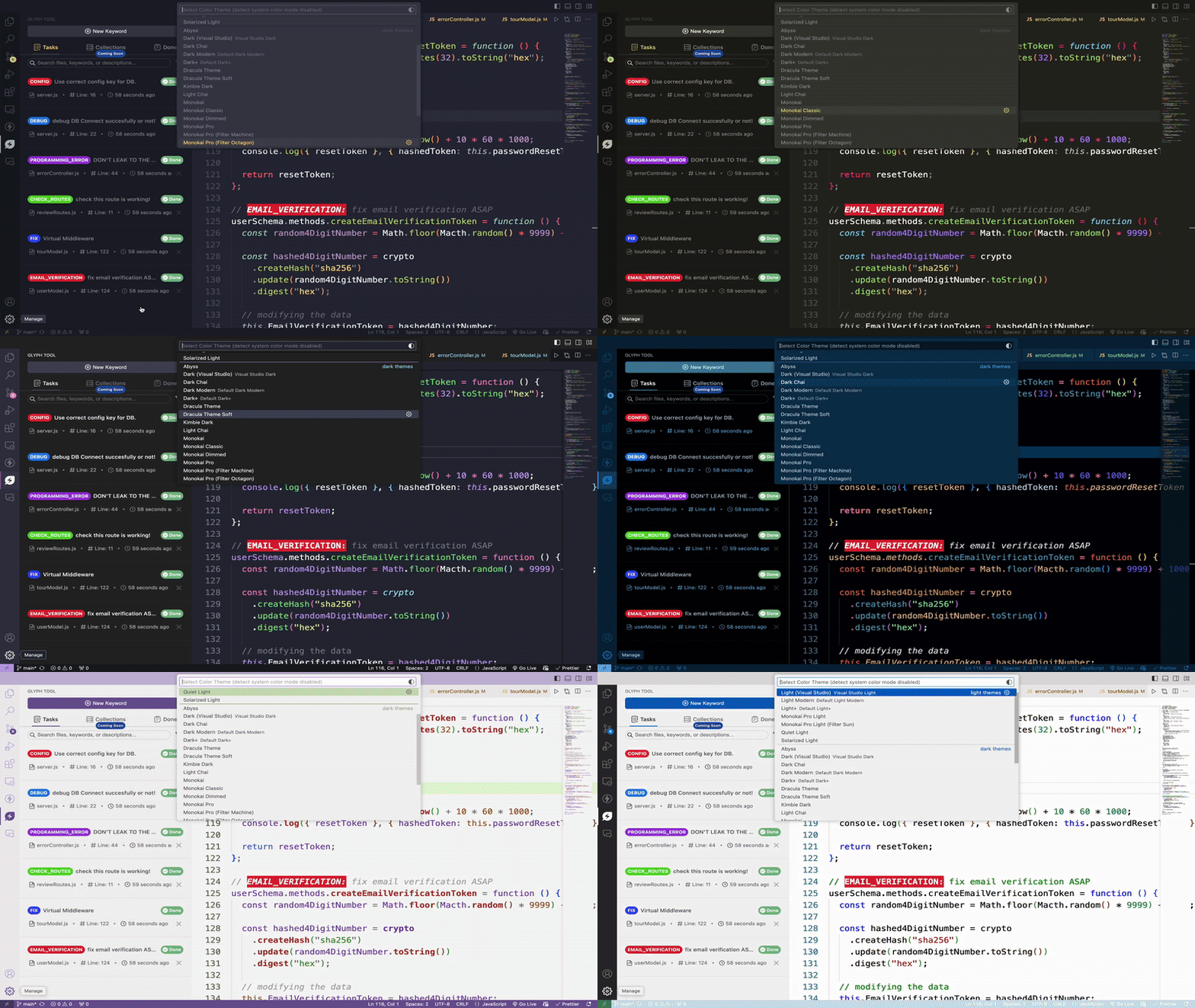
Theme Compatible
Beautifully designed to adapt with both dark and light VS Code themes. -
Collections (Coming Soon)
Something exciting is brewing — the Collections tab is under development!
Below are image and video demonstrations of Glyph in action, providing a quick visual overview of each feature:
- with
Lightcolor theme:
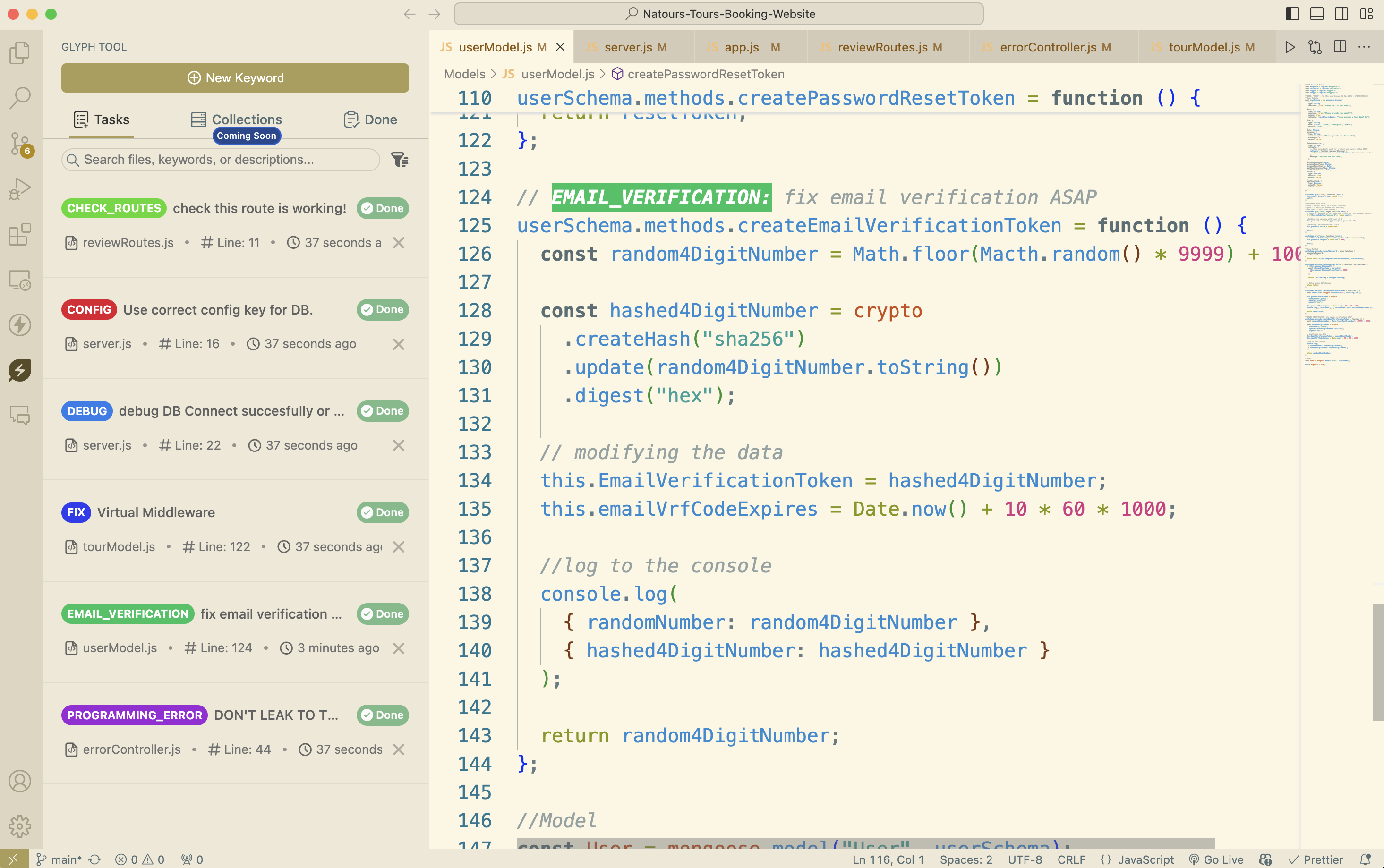
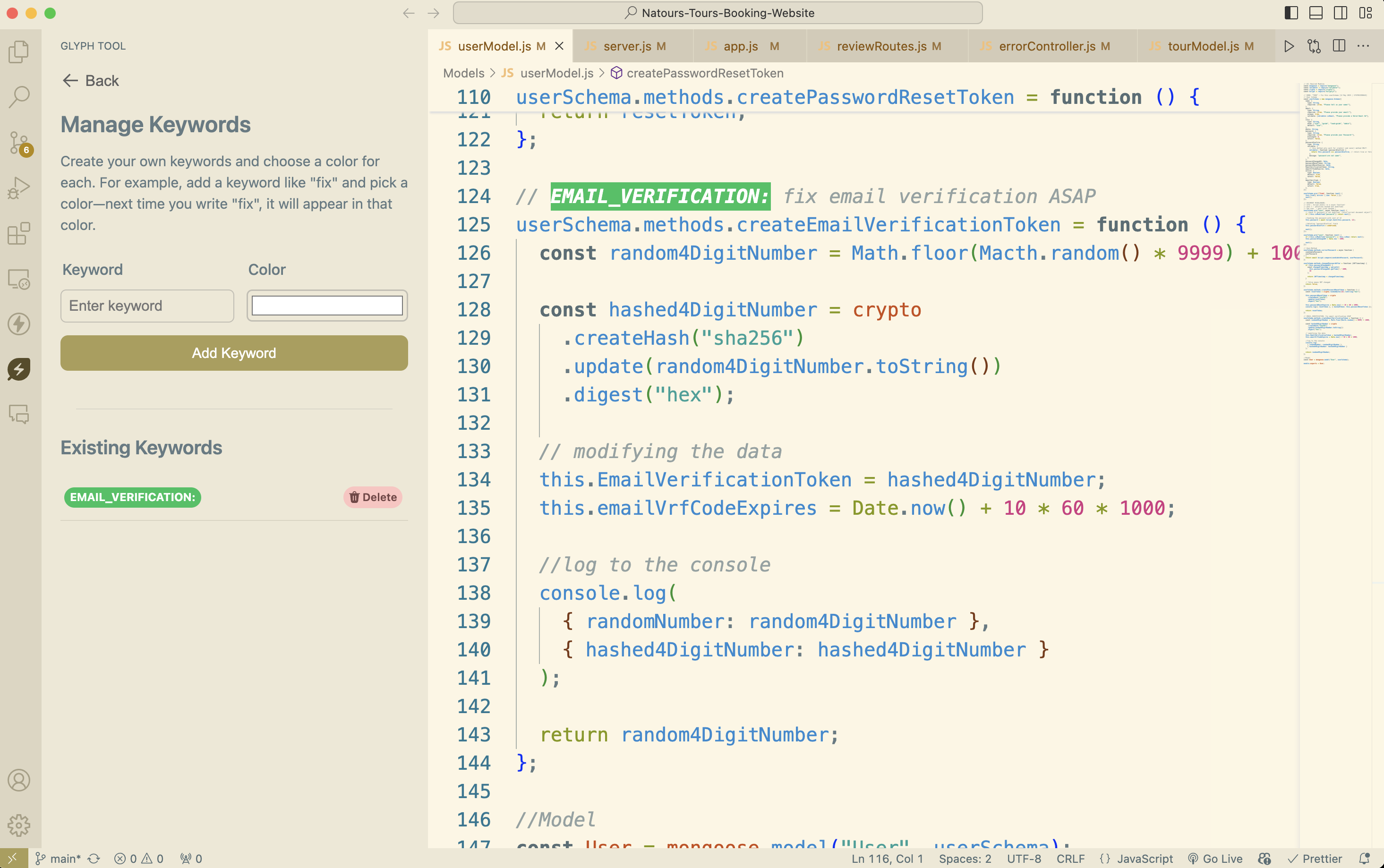
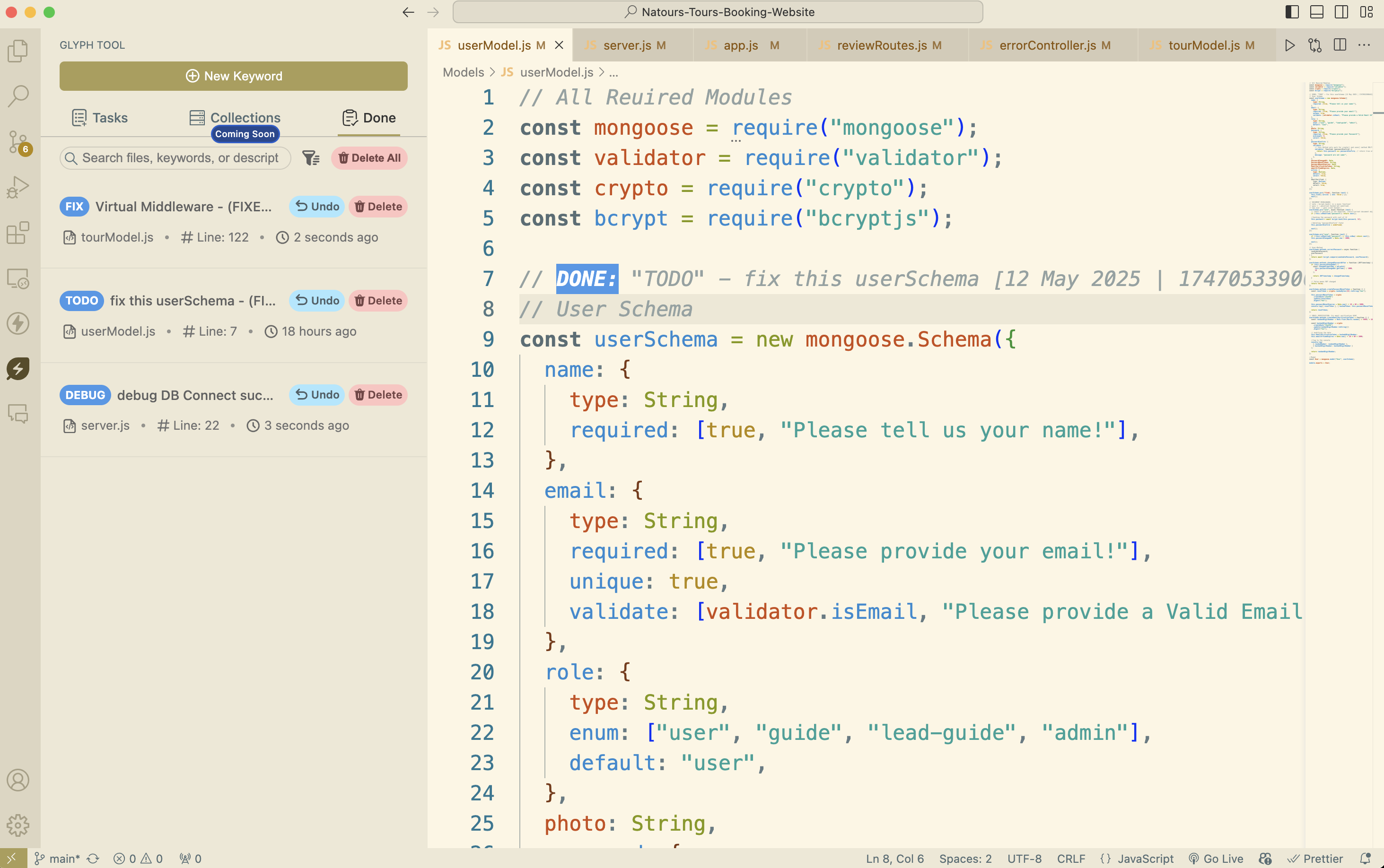
- with
Darkcolor theme:
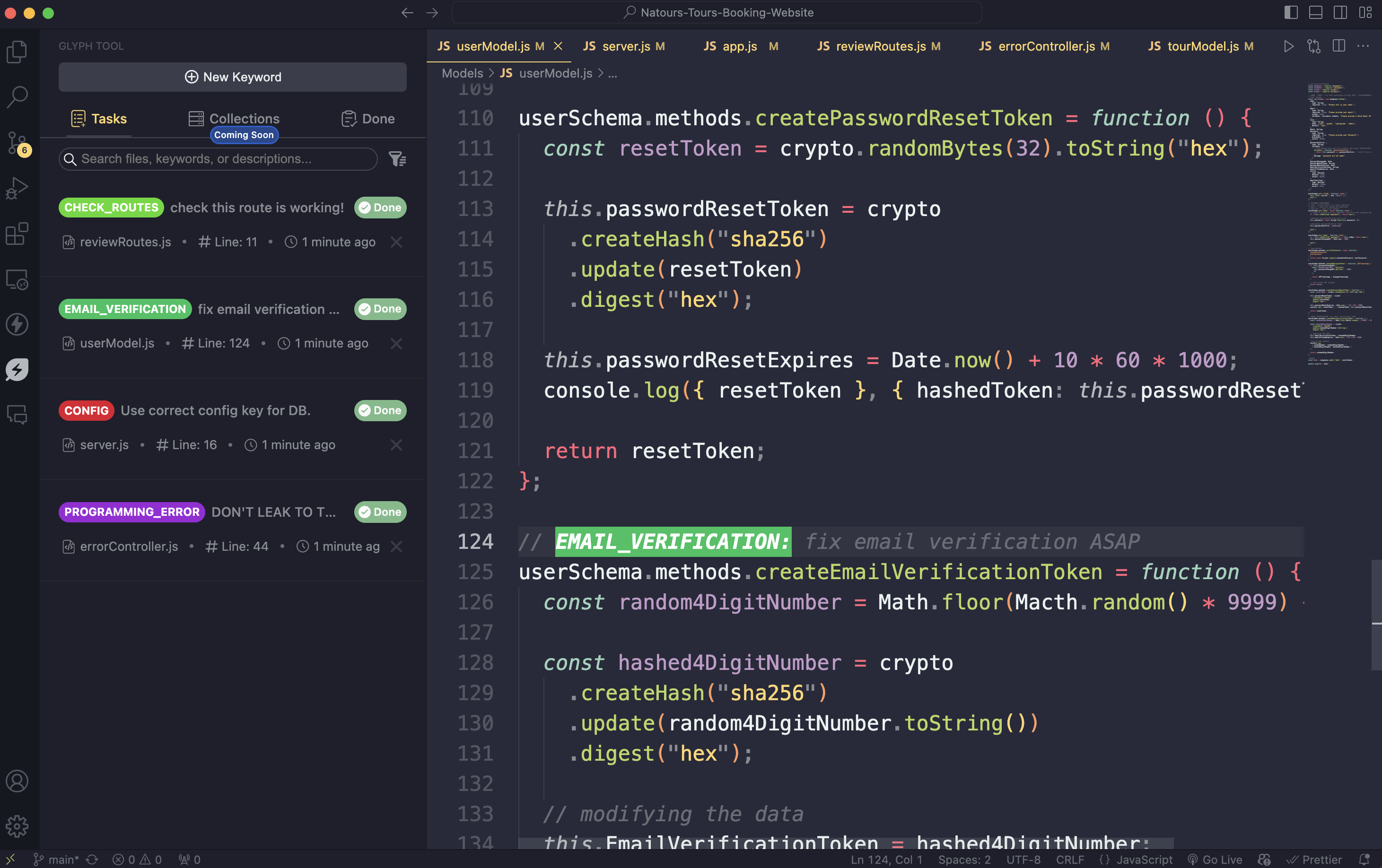

Create and customize your own task keywords with unique colors.
Click the Glyph icon in the sidebar to open your task dashboard. Navigate instantly to any task.
Manage your tasks' lifecycle — mark them complete, undo, disable temporarily, or delete.
Quickly clear all tasks from the view with a single click.
Visually distinguish between task types by assigning different highlight colors.
Use the powerful search to locate tasks in large codebases.
Filter tasks using different criteria like status, keyword, or file.
Glyph fits beautifully into your editor whether you’re in light mode or dark.
-
Open any source code file in Visual Studio Code.
-
Add a comment using a supported or custom keyword:
-
Make sure to start with @ before your keyword.
// @Todo: Refactor the login logic

// @Custom_Keyword: Use any Keyword you Want and the extension will automatically highlight the keyword

// @Improve: Use any Comment accoding to the Language

// @Support: Support All languages - Python, java, js, php... (Just use their comment, like for python use #, Java //, js //, html <!---->, css /**/...).
-
Open the Glyph sidebar by clicking its icon.
-
View, mark as done, undo, delete, or filter tasks with ease.
-
You can define any keyword in any file type — Glyph automatically detects the correct comment style.
- Open VS Code.
- Go to Extensions (
Ctrl+Shift+XorCmd+Shift+X). - Search for Glyph Tool.
- Click Install.
- Start managing your inline tasks instantly!
- Use consistent formatting for your task comments.
- Assign unique colors for better visual grouping of similar tasks.
- Use filters and search when working with large projects.
- Regularly mark completed tasks to reduce clutter and stay focused.
Future updates will include:
- Collections tab
- AI-powered task grouping (planned)
- Task syncing (planned)
We welcome contributions! Here's how to get started:
- Fork the repo
- Create a new branch:
git checkout -b feature/my-feature - Make your changes
- Commit and push:
git commit -m 'Add new feature' - Submit a pull request
For bugs and suggestions, open an issue.
We'd love to hear your thoughts!
- Found a bug? Have a suggestion? Open an issue
- Need help? Reach out through discussions or contact the maintainer.
Glyph makes it easier to stay on top of your development tasks without leaving your code editor. Try it out and keep your code — and your mind — clean and focused.